Manage your daily Workqueue
Overview
Section titled “Overview”Workqueue brings tasks, calls, meetings and reminders into a due-date view. Open, Overdue, Today, Upcoming and Completed counters help you move from planning to action. Queue entries link back to their source record.
Purpose
Section titled “Purpose”Review pending work, complete finished activities and move appointments deliberately.
Prerequisites
Section titled “Prerequisites”-
View access to Activities or the related scheduled work.
-
Edit permission on an activity to complete or reschedule it.
Procedure
Section titled “Procedure”-
Open Workspace > Workqueue. Begin with Mine, or choose Team or All accessible when your role permits it.
-
Choose Overdue or Today, then narrow by work type or search text. Review the related record and the due date before acting.
-
Open the item to read its details. Use the completion control after the task is finished.
-
Use Reschedule to choose a new date and time when work must move. For meetings, check start, end and timezone together.
-
Use Schedule activity for new work. Select its type, record association, title, owner and timing, then save.
-
Refresh the queue and confirm the item moved to the appropriate due bucket or Completed.
Expected result
Section titled “Expected result”Activities retain their record association and reflect the updated completion or schedule state.
Screenshots and diagrams
Section titled “Screenshots and diagrams”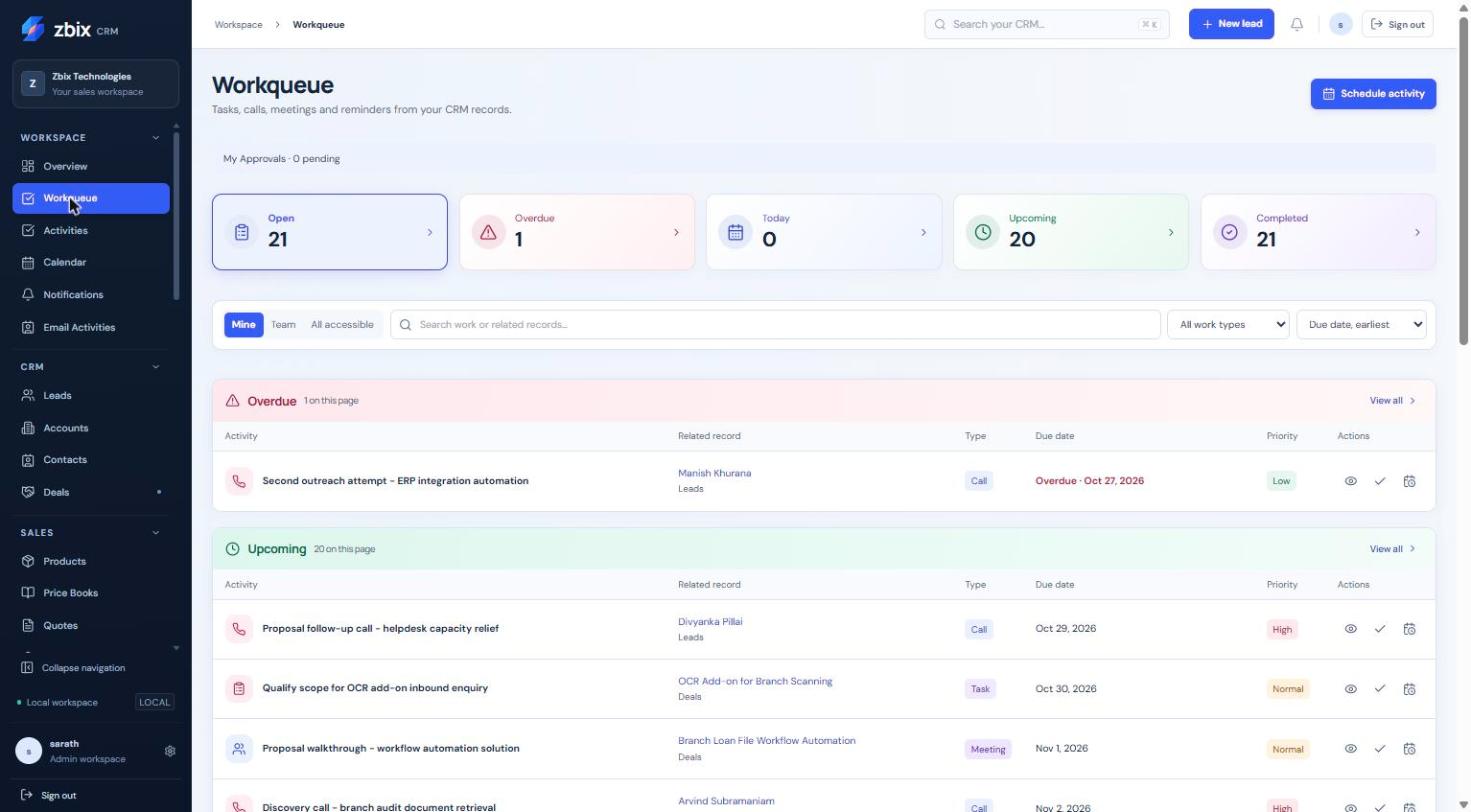
Important notes
Section titled “Important notes”-
Completing a task is different from cancelling a scheduled job. Use the action shown for that source type.
-
Meeting rescheduling moves its start/end and associated reminder together.
-
Scope controls cannot reveal work outside the underlying record and module permissions.
Troubleshooting
Section titled “Troubleshooting”-
A work item has no action: your role may allow reading but not editing that source.
-
An overdue item remains after work: verify the saved Activity status is Completed and refresh.
-
A reminder is late: ask an administrator to check worker heartbeat and due-job age.
Related articles
Section titled “Related articles”Search the guides or talk to the ZBIX team.


Software products, application engineering and IT services from Zbix Technologies.
Visit our company website ↗