Manage Accounts
Overview
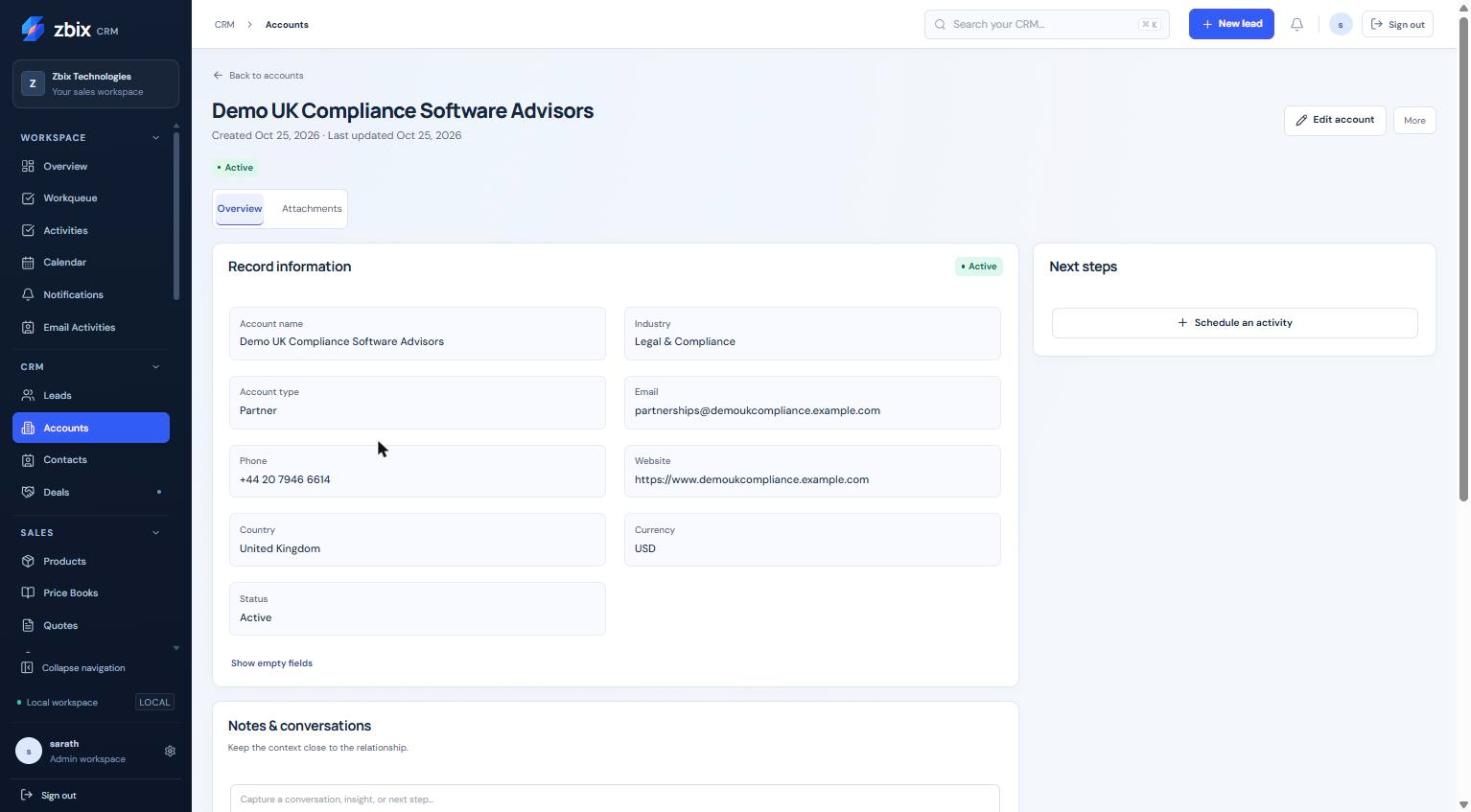
Section titled “Overview”Accounts represent customer and prospect organizations. Contacts, Deals, commercial documents and customer-specific price books can refer to an Account. The Account detail brings record information, attachments, notes and scheduled work together.
Purpose
Section titled “Purpose”Maintain the organizational relationship that links people, opportunities and commercial transactions.
Prerequisites
Section titled “Prerequisites”-
Account view/create/edit access.
-
Access to a parent Account if a hierarchy is required.
Procedure
Section titled “Procedure”-
Open CRM > Accounts and search the company before selecting Create account.
-
Enter Account name, then choose Account type: Customer, Prospect, Partner or Vendor.
-
Complete contact details, industry, country, currency and billing address as relevant. Select Active or Inactive status deliberately.
-
Use Parent account only when the organization belongs in a valid hierarchy. Save the Account.
-
Open its detail to add Notes and conversations, schedule an activity or review Attachments.
-
Create or update Contacts and Deals using this Account lookup so the relationships remain connected.
Expected result
Section titled “Expected result”The Account becomes the common organization reference for related customer work.
Screenshots and diagrams
Section titled “Screenshots and diagrams”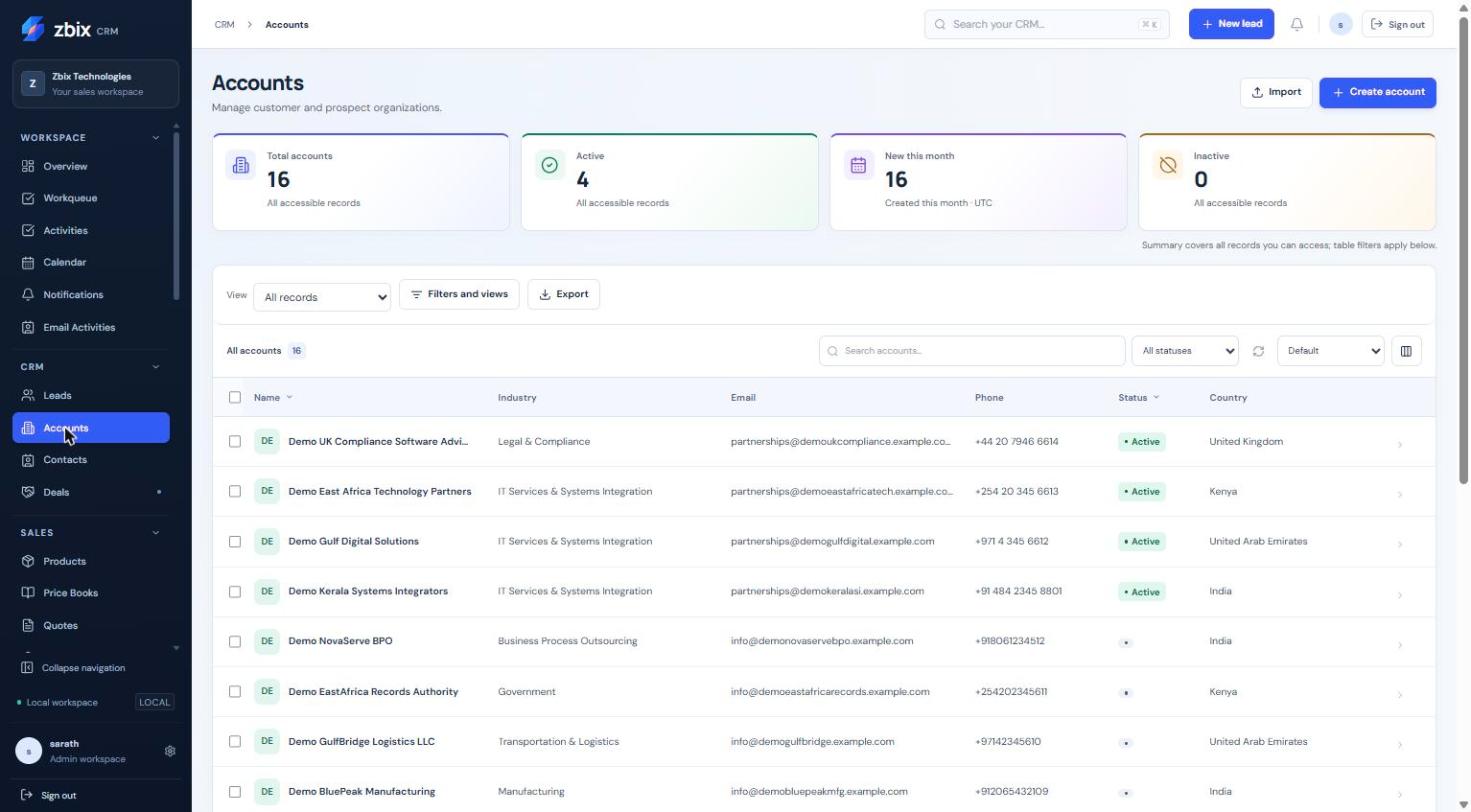
Important notes
Section titled “Important notes”-
An Account cannot be its own parent and circular hierarchies are rejected.
-
Changing an Account address does not rewrite previously finalized commercial snapshots.
-
Inactive is a business status; it is not the same as deleting a record or deactivating a user account.
Troubleshooting
Section titled “Troubleshooting”-
Hierarchy rejected: remove self-reference or a circular parent chain.
-
Missing Contact on a Deal: verify that the Contact belongs to the selected Account.
-
Record visible but not editable: your role may grant view without edit.
Related articles
Section titled “Related articles”Search the guides or talk to the ZBIX team.


Software products, application engineering and IT services from Zbix Technologies.
Visit our company website ↗