Recurring Billing
Overview
Section titled “Overview”The Recurring Billing navigation item opens Subscriptions & Billing. Subscriptions use the agreement model to store customer terms and generate recurring invoice work. The captured empty list represents no configured subscriptions at capture time.
Purpose
Section titled “Purpose”Use this module for recurring customer services, including fixed terms and ongoing agreements, with explicit billing and lifecycle controls.
Prerequisites
Section titled “Prerequisites”-
The user has Subscriptions permissions and access to the customer account.
-
Billing setup needs Billing manage_settings and Invoice create. Automatic Issue and Review Required require current Invoice approval authority; the worker must be operating.
-
The creation form also loads defaults through Revenue Plans view permission.
Procedure
Section titled “Procedure”-
Open Sales > Recurring Billing and select Create Subscription. Enter Agreement name and Customer account, with optional Contact and Quote.
-
Enter General and termination terms, Cancellation notice days and Invoice grouping preference. Configure the revenue model, currency, service start, term and lines; recurring unit price is per chosen N-month interval.
-
Select Preview agreement forecast, inspect service periods and amounts, then Create draft agreement. Review and activate the agreement using the appropriate authority.
-
Open Billing. Select Invoice mode: Draft Only, Review Required or Automatic Issue. Set Consolidated by Agreement or Separate by Recurring Line, Billing timing, Billing timezone and Invoice due days.
-
Select Save billing schedule. Review Next eligible billing date, service periods and the linked invoice or execution state. Use Pause schedule or Cancel schedule when authorized.
-
For an active/suspended agreement, select Change service lifecycle. Choose cancellation, immediate termination, suspension or resume as permitted. Enter a reason and optional effective date, then Preview lifecycle impact.
-
Review the effective date, future unbilled periods, existing invoices, financial obligations and reconciliation status. Select Confirm lifecycle change only after that review.
-
For a fixed term, use Renewal to set the extension and optionally Explicitly authorize automatic renewal. Ongoing agreements continue until their effective cancellation date and do not need renewal.
Expected result
Section titled “Expected result”A saved active schedule produces durable billing periods for the worker. Lifecycle changes apply at the validated boundary and preserve existing invoice obligations.
Screenshots and diagrams
Section titled “Screenshots and diagrams”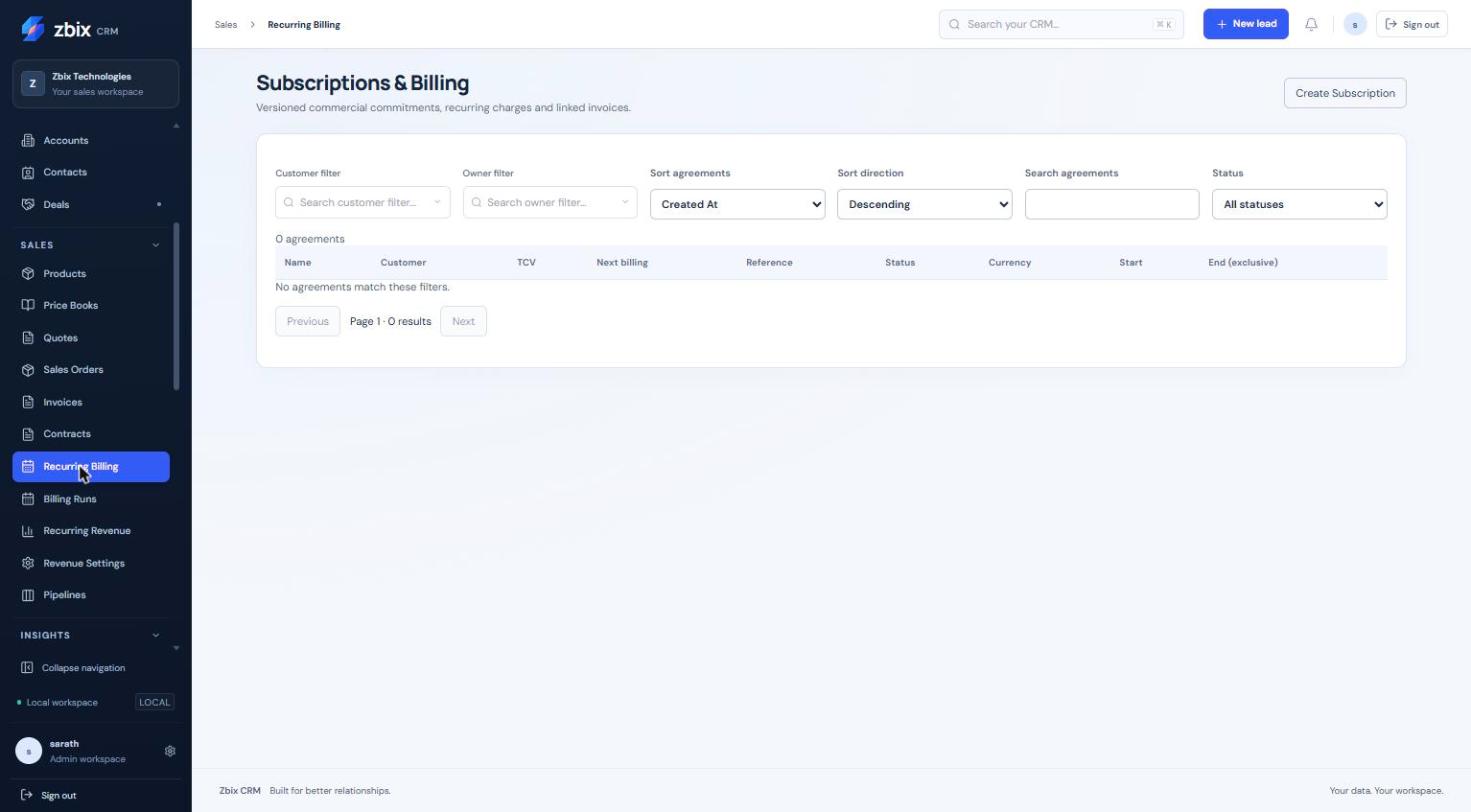
Important notes
Section titled “Important notes”-
Draft Only is the default. Automatic Issue creates issued CRM invoices; it does not charge a bank account or payment card.
-
An omitted lifecycle date uses the next eligible common billing boundary, respecting notice and minimum commitment. Immediate termination can require financial reconciliation.
-
Existing invoices are protected. A preview’s existing-invoice links cover the currently loaded history page; inspect the complete paginated Billing history where needed.
-
Renewal excludes existing one-time fees. Automatic renewal requires explicit agreement-level authorization.
-
Invoice due days and cancellation notice days range from 0 to 365.
-
There is no implicit catch-up for ended service periods. Resume does not automatically bill ended suspended history; review skipped runs and obligations explicitly.
Troubleshooting
Section titled “Troubleshooting”-
No invoices appear: verify Active agreement and schedule status, due date/timezone, worker health and operator permissions.
-
Lifecycle change is rejected: inspect the returned boundary, notice, commitment and billed-period constraints.
-
An ongoing agreement lacks TCV: this is intentional; review the bounded forecast and recurring run rate.
Related articles
Section titled “Related articles”Search the guides or talk to the ZBIX team.


Software products, application engineering and IT services from Zbix Technologies.
Visit our company website ↗