Manage Leads
Overview
Section titled “Overview”A Lead represents a prospect before conversion into an Account, Contact and optionally a Deal. Lead details also expose revenue planning, business-process controls, sales automation activity and assignment history when those capabilities are enabled.
Purpose
Section titled “Purpose”Qualify prospects, capture contact context and keep a clear follow-up before conversion.
Prerequisites
Section titled “Prerequisites”-
Lead view/create/edit permissions as appropriate.
-
Assign permission to change the owner.
-
Any custom data required by the published Lead layout.
Procedure
Section titled “Procedure”-
Open CRM > Leads and search by name, company or email. Review the status and rating before creating a duplicate.
-
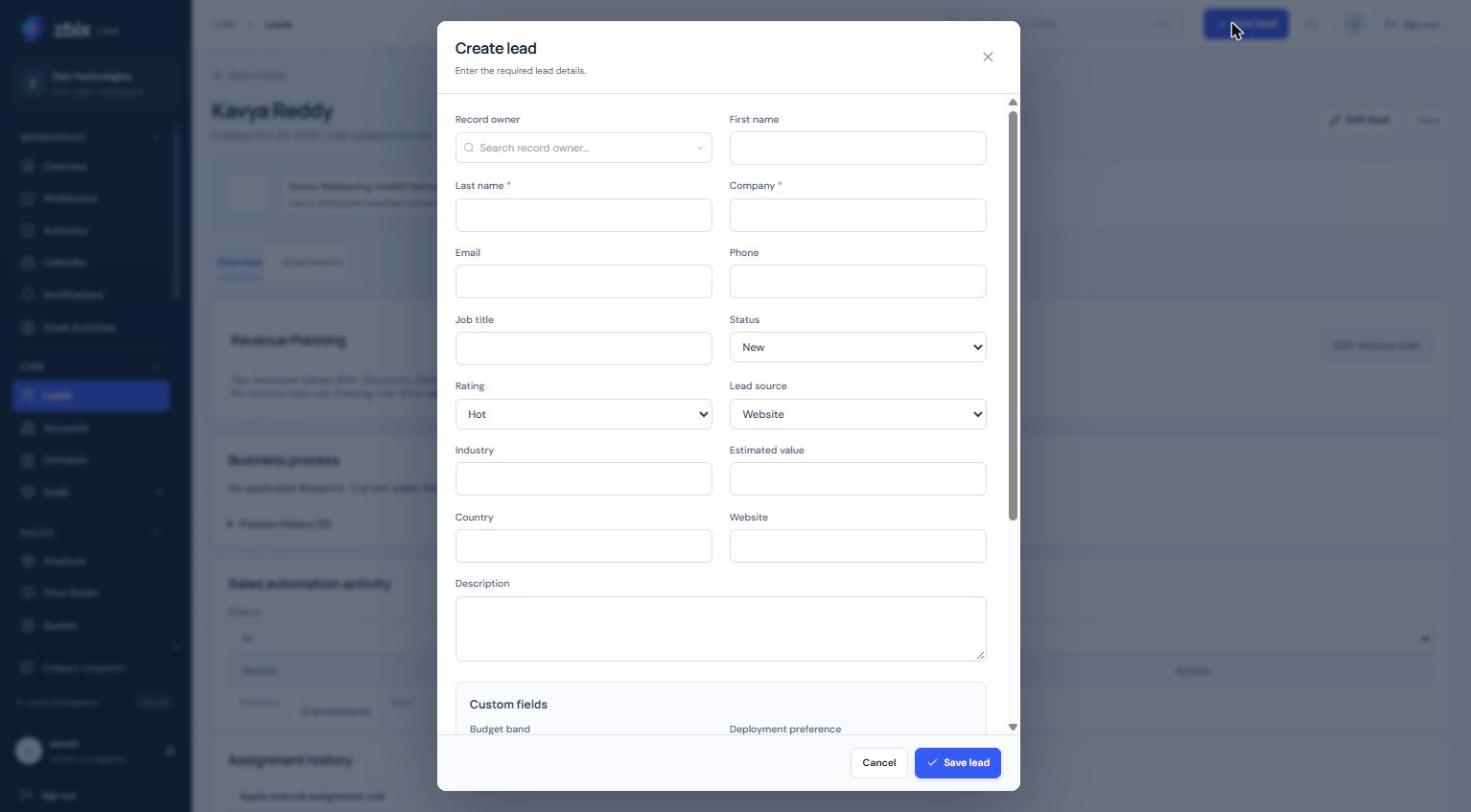
Select Create lead. Complete Last name and Company, then enter First name, Email, Phone and Job title where known.
-
Choose Status, Rating and Lead source. Add Industry, Estimated value, Country, Website and Description as useful to qualification.
-
Review the Record owner and custom fields, then select Save lead.
-
Open the Lead to add a note, schedule an activity and review any business-process instructions. Update the status as qualification progresses.
-
When the prospect is ready, set Qualified and follow the separate conversion procedure. Do not manually set Converted.
Expected result
Section titled “Expected result”A prospect is saved with an owner, qualification state and actionable history.
Fields and controls
Section titled “Fields and controls”| Field or control | Rule |
|---|---|
| Last name and Company | Required in the standard create form. |
| Status | New, Contacted, Qualified or Unqualified before conversion. |
| Rating | Hot, Warm or Cold. |
| Estimated value | Nonnegative numeric prospect estimate. |
| Lead source | Website, Referral, Event, Partner, Outbound or Other. |
Screenshots and diagrams
Section titled “Screenshots and diagrams”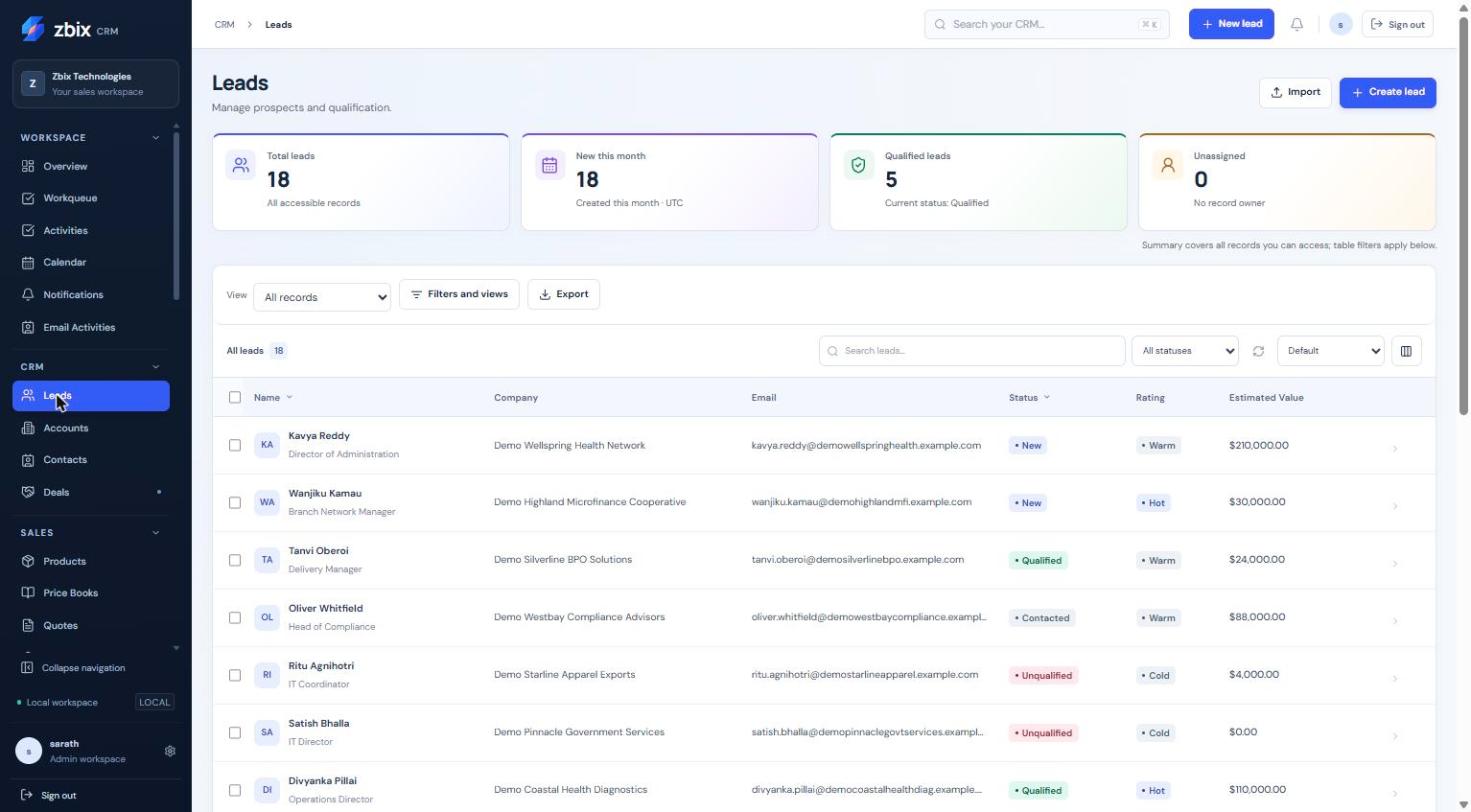
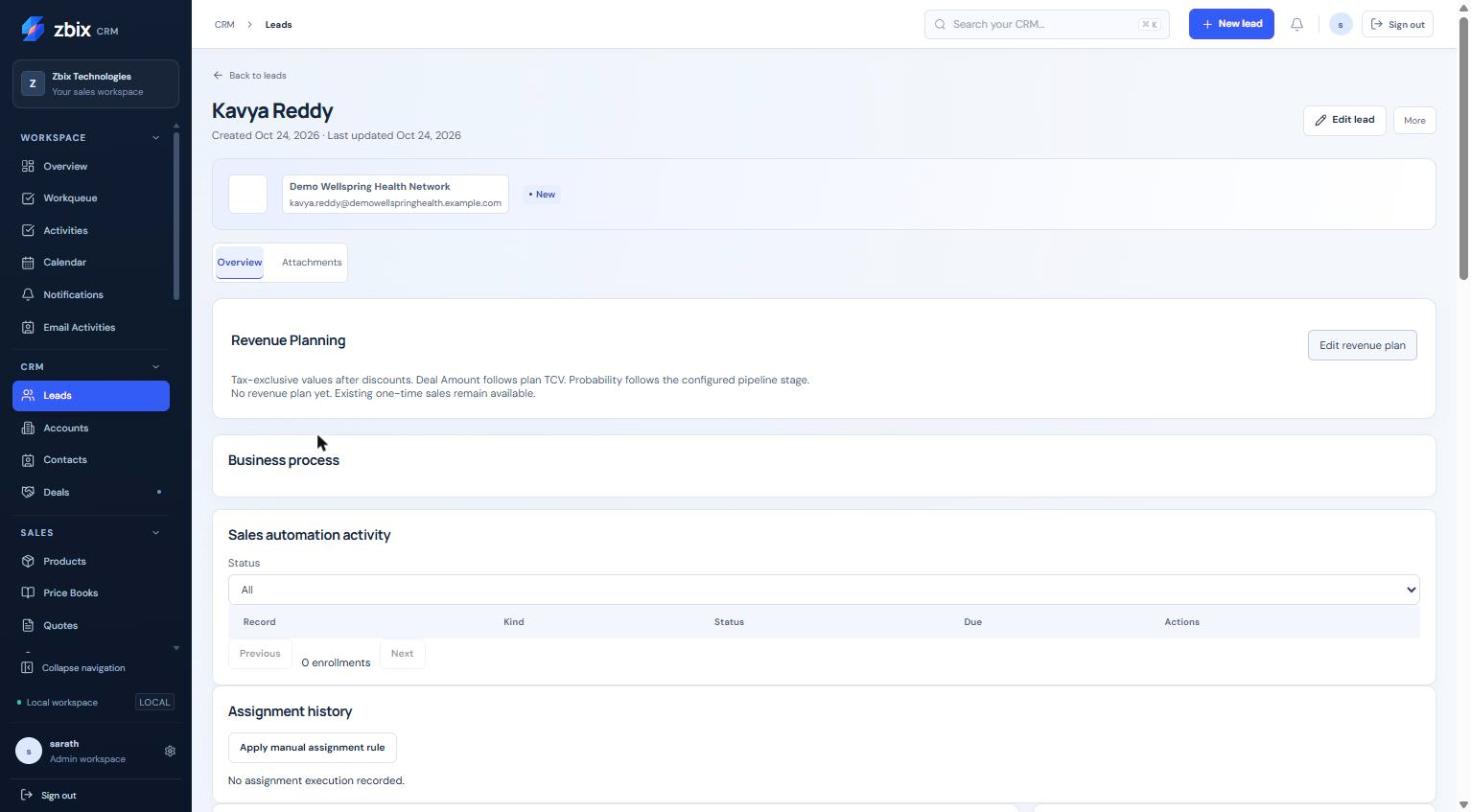
Important notes
Section titled “Important notes”-
The standard status choices are New, Contacted, Qualified and Unqualified; conversion sets Converted through a controlled operation.
-
An email cannot duplicate another active Lead email in the organization, even if that other Lead is outside your visibility.
-
The screenshot contains custom fields added for the demonstration workspace. Your published layout may differ.
Troubleshooting
Section titled “Troubleshooting”-
Cannot save: complete starred/custom required fields and correct invalid email or amount.
-
Duplicate email: ask the owner or administrator to locate the existing Lead.
-
Cannot edit a converted Lead: work in the linked Account, Contact or Deal instead.
Related articles
Section titled “Related articles”Search the guides or talk to the ZBIX team.


Software products, application engineering and IT services from Zbix Technologies.
Visit our company website ↗