Contracts
Overview
Section titled “Overview”Contracts store versioned commercial commitments for a customer account, including recurring, one-time or mixed revenue lines. Contract details separate Overview, Commercial Terms, Billing, Documents, Activities, History and Renewal.
Purpose
Section titled “Purpose”Use a Contract to turn a won Deal’s revenue plan into a controlled agreement, or to record a direct agreement for an existing customer. Draft creation and activation are separate actions.
Prerequisites
Section titled “Prerequisites”-
The user has Contracts create/view permissions and access to the customer account and related records.
-
Activation requires approval authority. Billing configuration requires Billing manage_settings and Invoice create; Review Required and Automatic Issue additionally require Invoice approval.
-
The agreement creation form loads defaults through Revenue Plans view permission; include that grant for users creating agreements.
Procedure
Section titled “Procedure”-
Open Sales > Contracts and select Create Contract. Alternatively, open a won Deal with an account and saved revenue plan and select Create Contract from Won Deal.
-
Enter Agreement name and Customer account. Optionally select Contact and Quote, enter General and termination terms, Cancellation notice days and Invoice grouping preference.
-
Select Revenue model, Currency, Expected service start and Term type. A Fixed Term needs a duration or exclusive end; Ongoing Until Cancelled can include minimum commitment months.
-
Add Revenue lines. For each line enter description, quantity and unit price, select Charge type and Every N months for recurrence. Expand Line dates, discount and tax treatment for optional product, dates, discounts and inclusive/exclusive tax.
-
Select Preview agreement forecast and review the amounts and service-month breakdown. Then select Create draft agreement.
-
Review the draft and custom fields under Overview. Use the authorized lifecycle action to activate when the terms are approved.
-
In Commercial Terms, enter a revised plan, Effective date and Amendment reason. Select Validate and preview amendment, review Future financial effects, then Confirm commercial revision.
-
Use Documents and Activities to associate existing customer files or activities. Manage customer files opens the normal attachment service; Create linked task makes an associated follow-up.
Expected result
Section titled “Expected result”The agreement retains its commercial versions and audit history. Financial changes affect eligible future periods while preserving protected invoice history.
Fields and controls
Section titled “Fields and controls”| Field or control | Rule |
|---|---|
| Agreement name | Required |
| Customer account | Required accessible Account |
| Currency | Configured commercial currency; immutable after creation |
| Term | Fixed up to 120 months or ongoing until cancelled |
| Revenue line interval | 1–36 months |
| Plan lines | At most 100; unique line identities |
| End date | Exclusive; after service start |
| Contact | Optional; must belong to customer Account |
Screenshots and diagrams
Section titled “Screenshots and diagrams”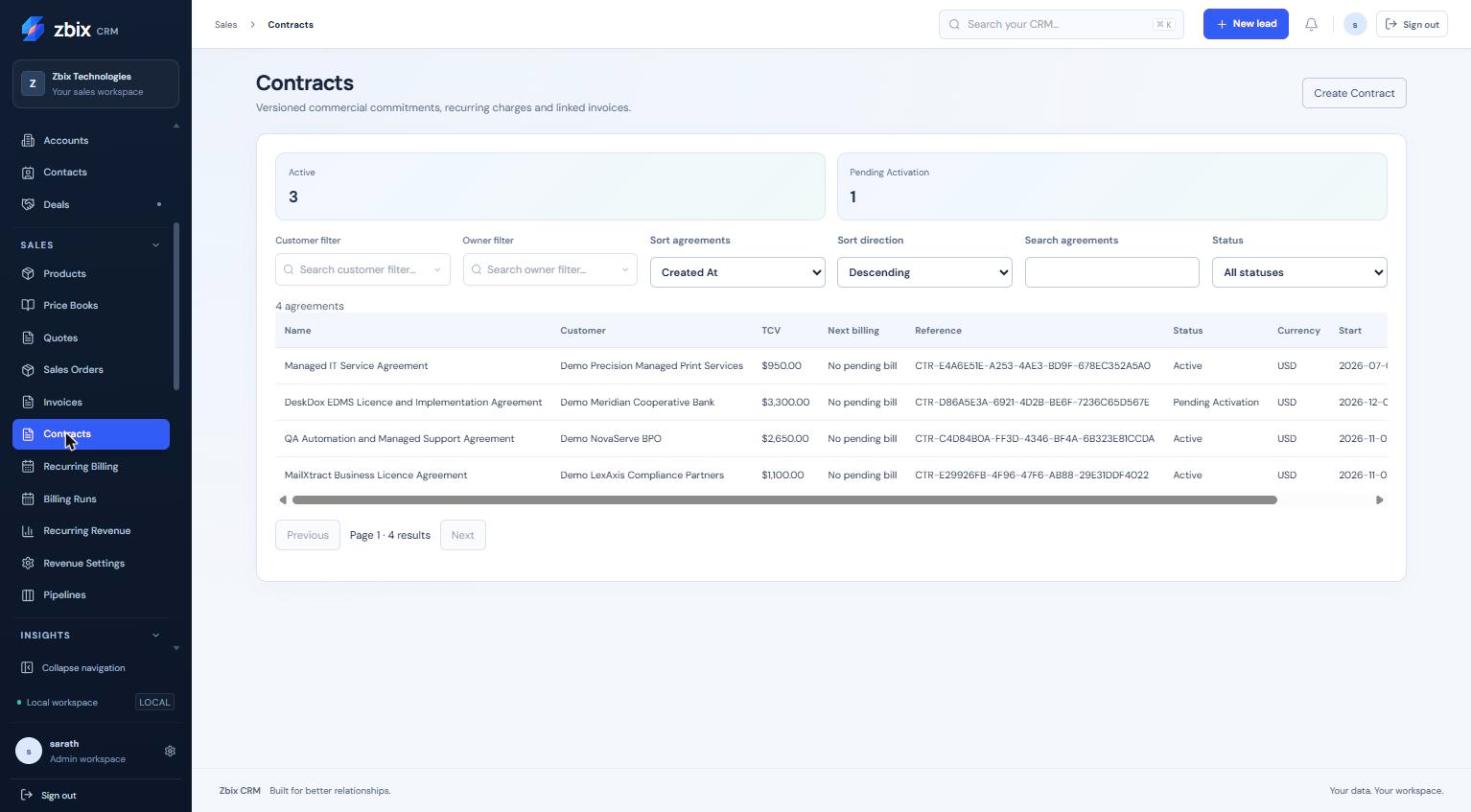
Important notes
Section titled “Important notes”-
Recurring unit price is the charge for the selected interval. For an annual 1,200 charge, use unit price 1,200 and interval 12; normalized MRR is 100 before applicable adjustments.
-
End dates are exclusive. Fixed terms are bounded to 120 months; line intervals are 1–36 months and a plan permits at most 100 lines.
-
Currency is immutable once the agreement exists. Contacts must belong to the account; related Quotes/Orders must match customer and currency.
-
An ongoing agreement shows Ongoing — No Fixed TCV. Its bounded forecast is not lifetime committed value.
-
Removing an association preserves the underlying customer file or activity.
Troubleshooting
Section titled “Troubleshooting”-
Create from won Deal fails: verify a won stage, linked account and saved revenue plan.
-
Amendment is rejected: preserve line identities/start anchors and use an eligible unbilled boundary; do not alter an issued invoice to reflect new pricing.
-
Concurrent terms warning: refresh the agreement and review the current version before resubmitting.
Related articles
Section titled “Related articles”Search the guides or talk to the ZBIX team.


Software products, application engineering and IT services from Zbix Technologies.
Visit our company website ↗