Workflows
Overview
Section titled “Overview”Conditional workflow automation creates versioned rules for Leads, Deals, Accounts and Contacts. Rules evaluate an actual record event and optional conditions, then queue ordered internal actions. Existing simple workflows are shown below the conditional rules and are a separate mechanism.
Purpose
Section titled “Purpose”Use a conditional rule to make follow-up tasks and in-app notifications consistent, or to enroll an eligible Lead or Deal into a published sales cadence. A saved draft has no operational effect until it is published and activated.
Prerequisites
Section titled “Prerequisites”-
The deployment must enable conditional automation and the user must be allowed to view and manage Workflows, with the create or edit action for the change.
-
The triggering user and action recipients must retain access to the source record. Task creation also requires applicable Activity permissions and required task fields.
Procedure
Section titled “Procedure”-
Open Automation > Workflows. Under Conditional workflow automation, select Create conditional rule.
-
Select Module and enter Rule name. Select Workflow trigger. The catalog offers triggers appropriate to the module, including Record created, Status changes, Deal stage changed, Deal owner changed and Selected fields changed.
-
For a Deal stage trigger, select Pipeline and To stage; optionally restrict From stage. For Selected fields changed, select the fields that must actually change. For a Lead status rule, choose Target status and decide whether Also match Leads created in this status should be enabled.
-
Enable Require conditions if necessary. Build the allowed field predicates and AND/OR groups. Review the plain-language condition summary. Deal amount predicates need the matching currency equality in each branch.
-
Enter Elapsed delay (minutes), Task due-date timezone and whether to Recheck status and conditions before actions.
-
Add task action, Add notification action, or, for Leads and Deals when available, Add cadence enrollment. Enter titles and the required action details. Select the current owner, triggering user or explicit authorized user as recipient. Arrange the action order with Move action up.
-
Use Read-only condition check with an Authorized source record ID and select Explain conditions without actions. This evaluates conditions without creating tasks or notifications.
-
Select Save conditional draft. Review the saved definition, select Publish saved draft, then Activate published rule.
-
After a qualifying record event, select History for the rule. Inspect status, pinned version, source record, action outcomes, attempts and next retry. Open a created task through its link.
Expected result
Section titled “Expected result”A matching event produces a durable execution linked to the published rule version. The worker applies the action group using current permissions. History separates successful, failed, waiting and cancelled execution outcomes.
Fields and controls
Section titled “Fields and controls”| Field or control | Rule |
|---|---|
| Rule name | Required; maximum 200 characters |
| Elapsed delay | 0–525,600 minutes |
| Conditions | Maximum 24 nodes; depth 3; 10 rules per group |
| Ordered actions | Maximum 5 |
| Task due calendar days | 0–365 |
| Notification message | Maximum 1,000 characters |
Screenshots and diagrams
Section titled “Screenshots and diagrams”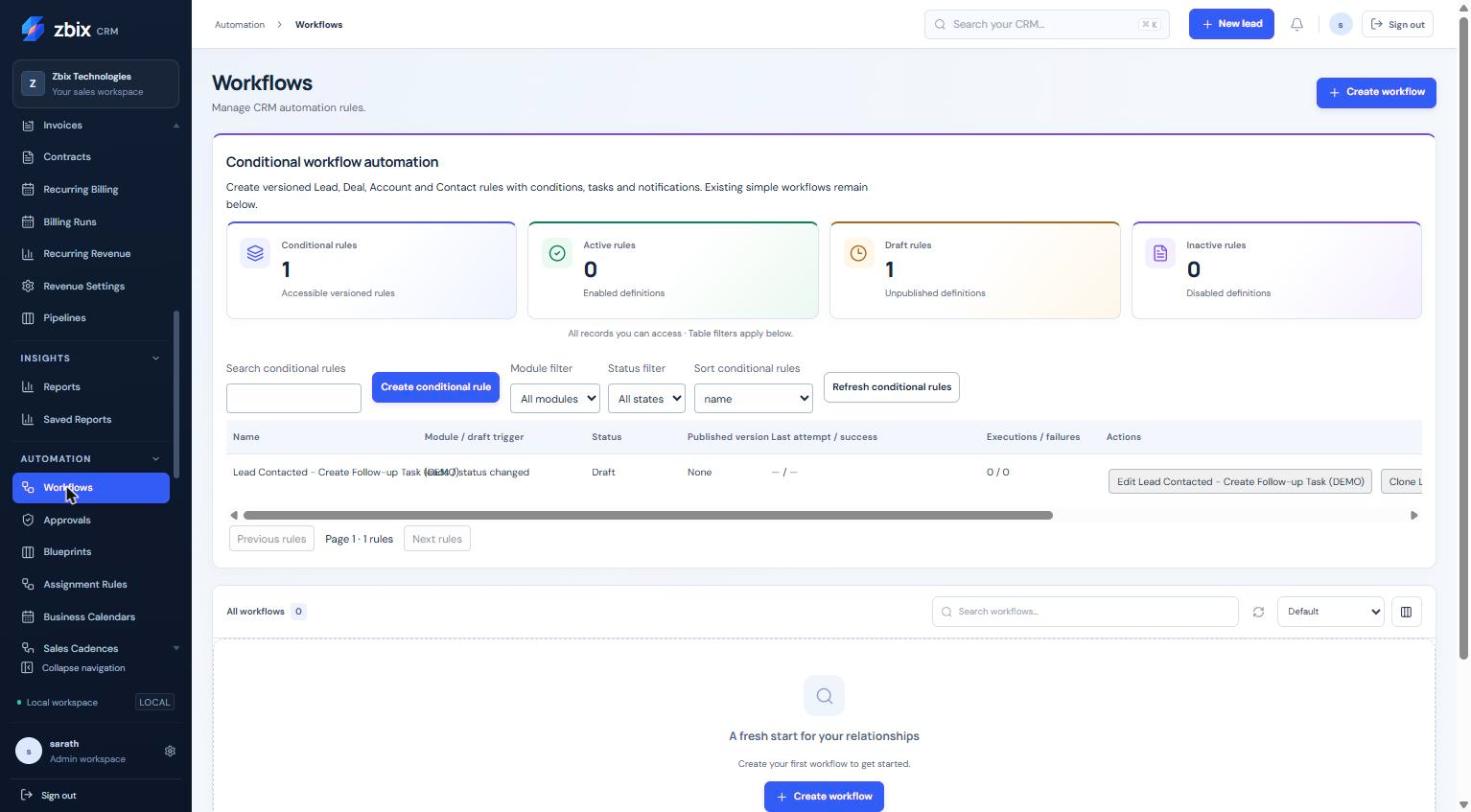
Important notes
Section titled “Important notes”-
At most five ordered actions are allowed. Conditions are bounded to 24 nodes, depth three and ten conditions per group; related-record conditions are unavailable.
-
Delay is elapsed time. Task due days are calendar days in the selected timezone, not business days. Zero delay still queues the worker.
-
Task titles allow up to 200 characters; task descriptions up to 2,000; notification messages up to 1,000. Delay is 0–525,600 minutes and task due days 0–365.
-
One failed internal action rolls back the action group. An unchanged field does not create a new event. Subsequent genuine transitions do.
-
Publishing does not rewrite pending executions. Deactivate and cancel pending cancels pending work. Cadence enrollment references the selected immutable version and retains an already-open enrollment.
-
These workflow actions do not send arbitrary external HTTP requests, execute scripts or deliver external email.
Troubleshooting
Section titled “Troubleshooting”-
Rule does not run: verify publication, activation, the actual triggering change and condition result, then inspect execution history and worker health.
-
Execution fails after an access change: review the triggering user, source-record visibility, recipients and Activity required fields.
-
A version conflict preserves unsaved editor inputs: use Edit to reload deliberately, then reapply the intended change before publishing.
Related articles
Section titled “Related articles”Search the guides or talk to the ZBIX team.


Software products, application engineering and IT services from Zbix Technologies.
Visit our company website ↗