Configure and use Price Books
Overview
Section titled “Overview”Price Books group currency-specific product prices and can apply to all permitted customers or one Account. Book and item effective dates determine whether a price can be used. Quotation pricing retains its chosen source.
Purpose
Section titled “Purpose”Maintain standard and negotiated customer pricing without changing historical documents.
Prerequisites
Section titled “Prerequisites”-
Price Book create/edit and approval grants as required.
-
Access to the Products and optional customer Account.
-
An approved currency and price-validity period.
Procedure
Section titled “Procedure”-
Open Sales > Price Books and select Create price book.
-
Enter Name, Currency and Status. Select Customer account only for a customer-specific book.
-
Set Effective date and Expiry date where needed, ensuring the date order is valid, then Save price book.
-
Open the book and add a Product price. Select the Product, unit, Unit price, Discount %, validity dates and status.
-
Save product price. Check for overlapping active price periods before adding another entry for the same Product.
-
Select the applicable book when preparing a Quote and review the resolved line price and provenance before saving.
Expected result
Section titled “Expected result”Authorized quotations can resolve applicable prices from the selected book while preserving the resulting snapshot.
Screenshots and diagrams
Section titled “Screenshots and diagrams”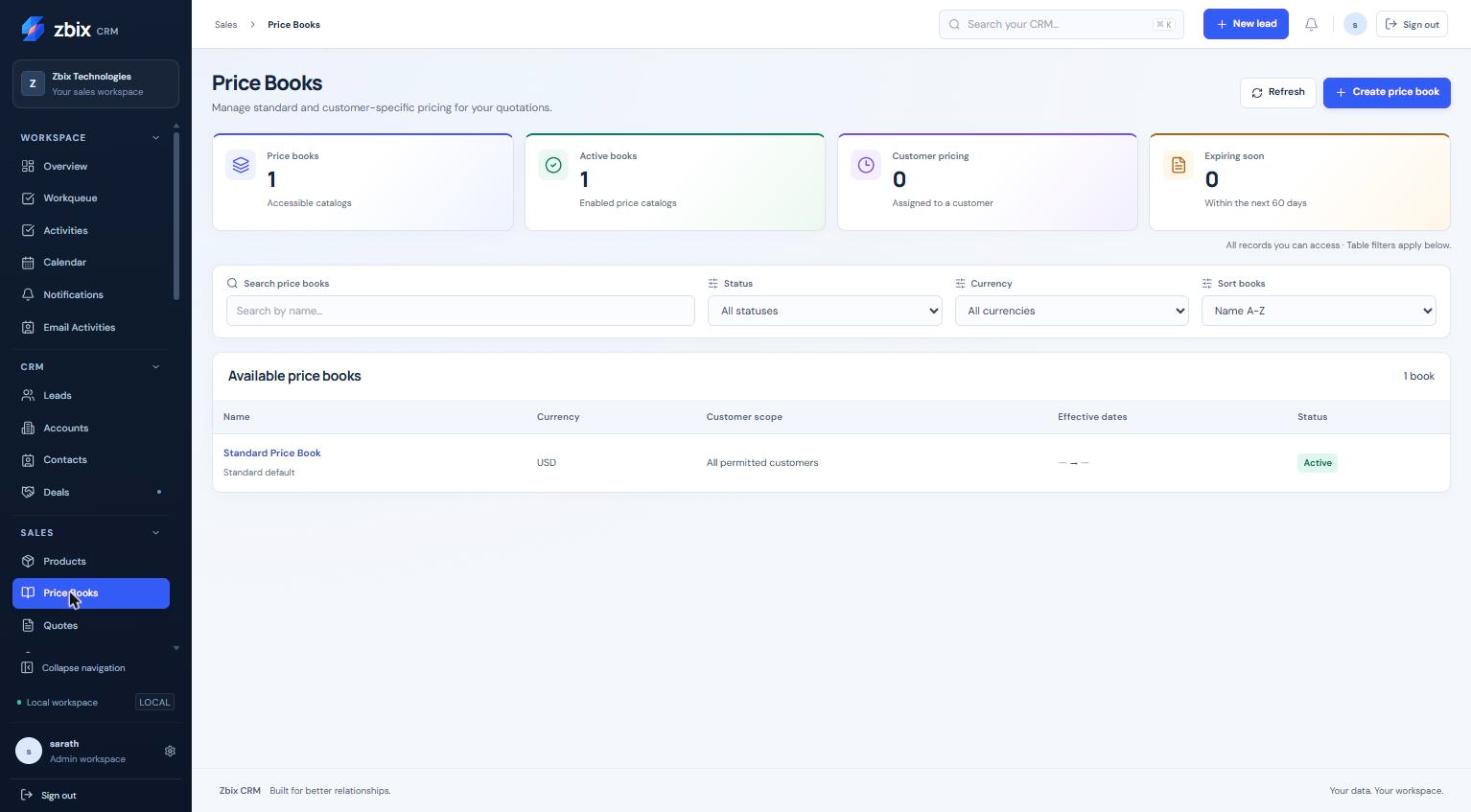
Important notes
Section titled “Important notes”-
A customer-specific book applies only to its chosen Account. The system maintains the standard default book.
-
Creation/content changes have separate action requirements; deactivation also requires the applicable delete grant.
-
Price validity is evaluated with currency and customer applicability, not merely the displayed name.
Troubleshooting
Section titled “Troubleshooting”-
Price cannot be added: confirm Product visibility, matching currency and valid date range.
-
Overlapping price error: revise the effective periods or deactivate the superseded entry through the permitted action.
-
Unexpected quote price: check customer, book, issue/effective date and the saved line source.
Related articles
Section titled “Related articles”Search the guides or talk to the ZBIX team.


Software products, application engineering and IT services from Zbix Technologies.
Visit our company website ↗