Manage Teams and legacy role policies
Overview
Section titled “Overview”Teams group people for record visibility and reporting. A user can belong to several teams and can be a manager in a membership. Team membership and action permissions are evaluated separately.
Purpose
Section titled “Purpose”Organize account coverage and manager visibility without granting unintended administrative actions.
Prerequisites
Section titled “Prerequisites”-
Administrator identity.
-
Active users from the same organization.
-
An agreed ownership and team-scope policy.
Procedure
Section titled “Procedure”-
Open Administration > Teams & permissions. Review the existing teams before creating another group.
-
Create a team with a descriptive name and save it.
-
Choose the team, add its intended active members, and mark the relevant team managers.
-
Save membership changes and refresh the team details. Resolve a version conflict by reviewing the latest membership rather than overwriting it.
-
Review legacy role permissions and visibility if your organization uses them. Check Module Permissions for users with an explicit custom role because that assignment replaces legacy action/scope policy.
-
Test access through a representative authorized user account during an approved access review.
Expected result
Section titled “Expected result”Teams reflect the intended organization structure and effective visibility uses the current memberships.
Screenshots and diagrams
Section titled “Screenshots and diagrams”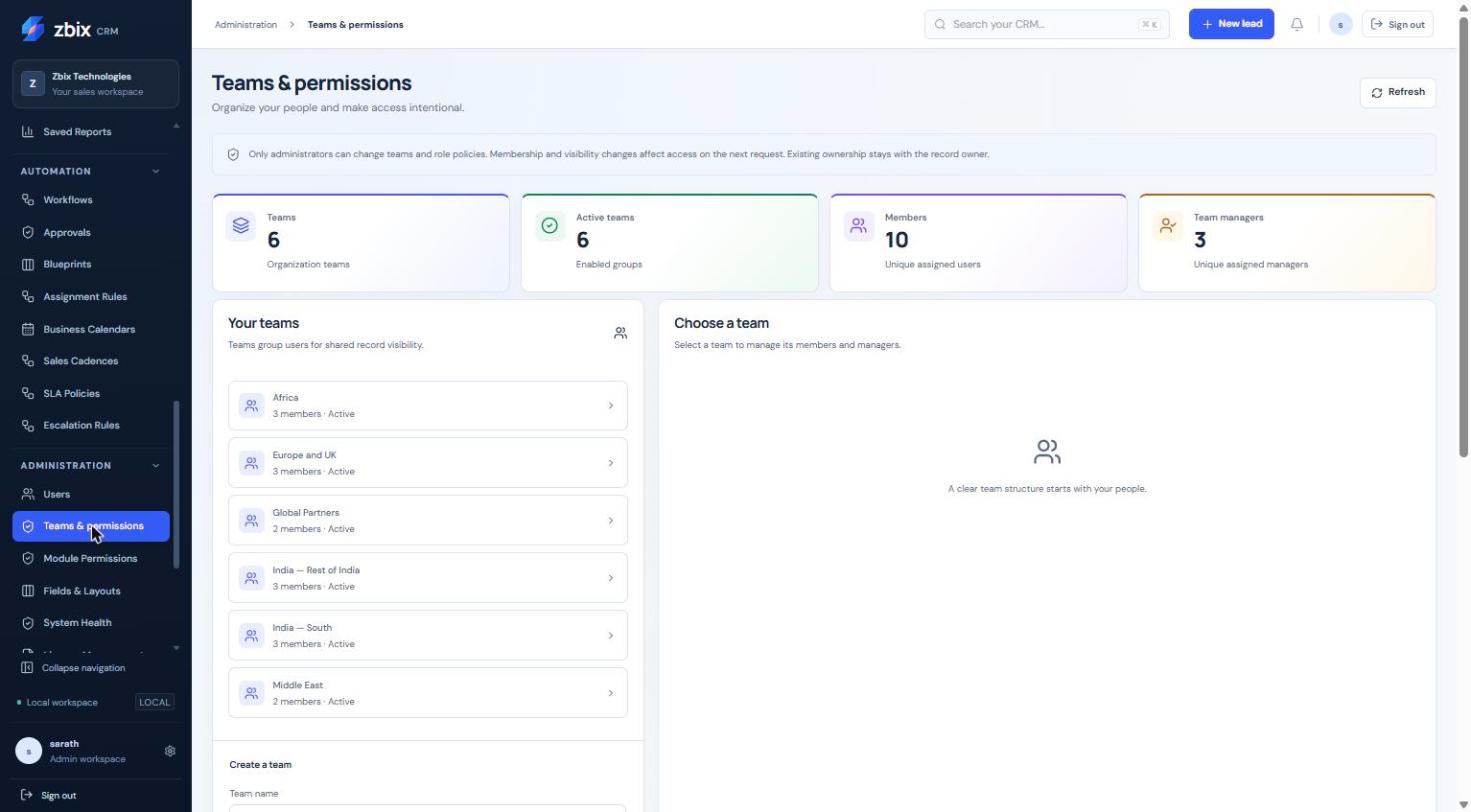
Important notes
Section titled “Important notes”-
Existing record ownership stays with the owner when membership changes.
-
Multiple team memberships can produce overlapping reporting groups.
-
A team manager flag does not turn a user into an administrator.
Troubleshooting
Section titled “Troubleshooting”-
Member cannot be added: confirm the user is active and belongs to this organization.
-
Team records are absent: the module visibility may be own rather than team.
-
Totals overlap: do not sum teams as disjoint business units.
Related articles
Section titled “Related articles”Search the guides or talk to the ZBIX team.


Software products, application engineering and IT services from Zbix Technologies.
Visit our company website ↗