Install the native Windows Server edition
Overview
Section titled “Overview”The native installer turns a qualified Windows host into a shared CRM server. It installs the application, PostgreSQL 17, a compiled browser interface and the HTTPS gateway, supervised by the ZBIX CRM Windows service. Users connect from browsers; they do not install a separate CRM desktop client.
Purpose
Section titled “Purpose”Configure a native Windows deployment for public-domain access, private-office access or both, then verify its readiness for operational handover.
Prerequisites
Section titled “Prerequisites”-
An approved compatible x64 Windows host and administrator access.
-
A publisher-approved installer with its trusted release checksum; the published 1.2.0 installer is unsigned.
-
Available gateway ports and an approved DNS/client-trust plan.
-
Initial administrator details, license activation arrangements and recovery-key custody.
Procedure
Section titled “Procedure”-
Check the installer identity and SHA256 against the approved release information. For v1.2.0 the package is ZBIX-CRM-Windows-Server-x64-Setup-1.2.0.exe. Resolve publisher-signing requirements through the organization’s software approval process before installation.
-
Confirm the Windows build, workload capacity and gateway port ownership. The installer enforces x64 compatibility and an operating-system version floor, but the target environment still needs qualification. Keep the internal database and API ports unavailable from the LAN or Internet.
-
Run the approved installer as administrator. It installs the runtime and registers the automatic ZBIX CRM Server service and gateway firewall rules. Open ZBIX CRM Server Manager from the installed shortcut.
-
For public access, enter Public domain (optional) using a DNS name such as crm.example.com, and enter Certificate email. The name must resolve to the intended gateway and certificate validation must reach the host according to the exact package’s network requirements.
-
For private access, enter Private hostnames or IPv4 addresses, one per line. At least one public or private name is required. Where available, use split DNS with the public name so office clients can use the same trusted public certificate.
-
Enter the first administrator email, a password of at least 12 characters and its confirmation. Choose Save configuration and start. The runtime initializes PostgreSQL when needed, prepares configuration, applies migrations, and starts the API, worker and HTTPS gateway.
-
Check Server Manager status and the Windows service. Open the configured HTTPS address and verify the application readiness endpoint and sign-in page. Do not treat an internal API response as proof that the public gateway is accessible from an intended user device.
-
For private CA mode, choose Export office CA certificate after the server has started. Distribute this public root through the organization’s managed client-trust process, then verify a browser connection without warnings. Keep the CA private key on the server.
-
Complete License Management, administrator MFA, recovery storage, an independently verified recovery point and an isolated restore test. Record the installed release, operational owners and any uncompleted qualification before handing over to users.
Expected result
Section titled “Expected result”The Windows service is running, intended clients reach trusted HTTPS, the initial administrator can sign in, and license, monitoring and recovery responsibilities are documented.
Screenshots and diagrams
Section titled “Screenshots and diagrams”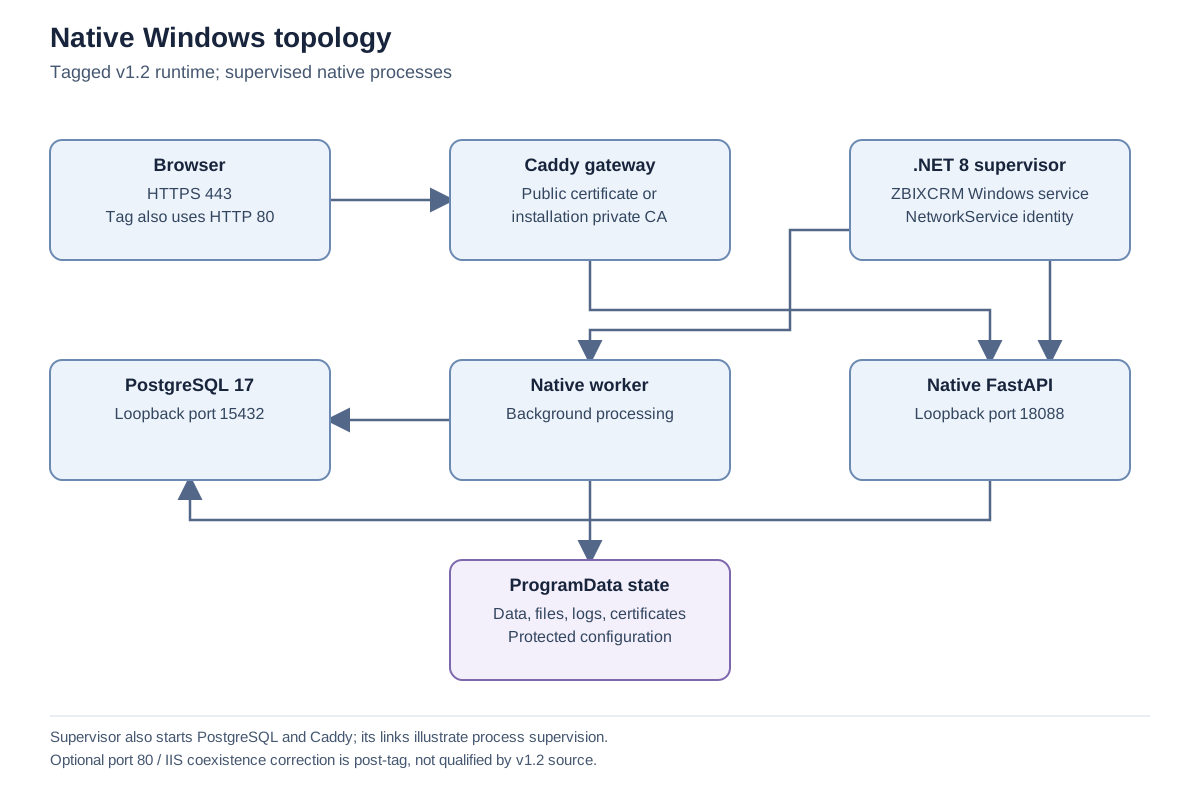
Important notes
Section titled “Important notes”-
Persistent data, configuration, certificates, logs and backups are stored under ProgramData\ZBIXCRM. Uninstall retains this state; retain an independent verified recovery point as well.
-
No Docker, WSL, Hyper-V, Linux VM or WebView2 dependency is required by this package.
-
Follow the exact installer release’s gateway-port instructions. Later source changes are not automatically part of an earlier installer.
-
The reviewed native acceptance report describes an isolated earlier package. These v1.2 steps are source-reviewed and were not independently executed for this documentation.
Troubleshooting
Section titled “Troubleshooting”-
If configuration is rejected, check that a public name or private host is present and that the chosen ports are valid and distinct.
-
If startup fails, review Server Manager status, the service state and protected service/gateway logs. Check port conflicts, database startup and readiness before repeating configuration.
-
If private HTTPS is untrusted, confirm the correct exported office CA reached the intended client trust store and that the URL matches a configured name.
-
Escalate with installer version, checksum, target Windows build, failed step and sanitized logs. Never attach runtime configuration, passwords or private keys.
Related articles
Section titled “Related articles”Search the guides or talk to the ZBIX team.


Software products, application engineering and IT services from Zbix Technologies.
Visit our company website ↗