Plan meetings in Calendar
Overview
Section titled “Overview”Calendar displays CRM meeting Activities and, when a personal Microsoft 365 connection is configured, that user’s private Outlook events. It offers Day, Week, Month and Agenda views.
Purpose
Section titled “Purpose”Plan and review appointments without confusing private mailbox events with shared CRM records.
Prerequisites
Section titled “Prerequisites”-
Activity access for CRM meetings.
-
A separately connected Microsoft 365 account and selected calendar mode for Outlook features.
Procedure
Section titled “Procedure”-
Open Workspace > Calendar. Choose Month, Week, Day or Agenda and use Previous, Today and Next to select the period.
-
Select New meeting. Enter the title, start/end, timezone, owner and related CRM record where relevant.
-
Review location and reminder settings, then save the meeting.
-
Open an existing CRM meeting to inspect or edit it. Change the timing deliberately and confirm the saved result in Calendar and Workqueue.
-
If Outlook events are visible, inspect their source before importing an event into CRM. Import is explicit and does not automatically associate a customer.
-
For a synchronization conflict or uncertain remote write, review the personal Microsoft 365 page before attempting another write.
Expected result
Section titled “Expected result”The CRM meeting uses the same Activity record in Calendar, Workqueue and record history.
Screenshots and diagrams
Section titled “Screenshots and diagrams”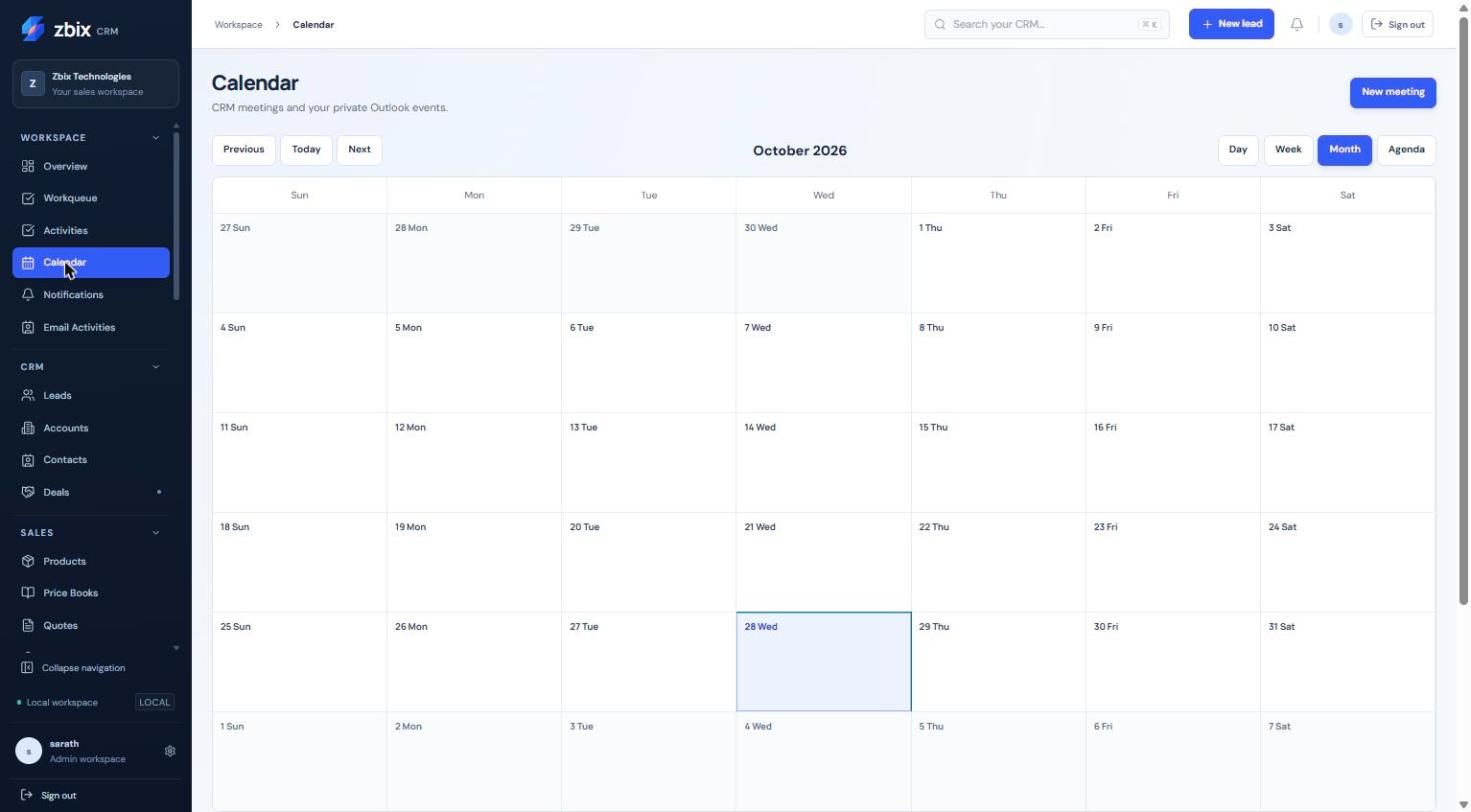
Important notes
Section titled “Important notes”-
Connecting Microsoft 365 does not change CRM login. Outlook sync modes are configured separately.
-
CRM-created Outlook events intentionally omit invitees; synchronization is not an invitation-delivery feature.
-
A private Outlook event remains private until explicitly imported or associated under the available controls.
Troubleshooting
Section titled “Troubleshooting”-
No meetings appear: check the date range, selected view and Activity permissions.
-
Outlook events are absent: inspect personal connection, selected calendar and sync mode.
-
Conflict or Uncertain status: compare the remote and CRM records instead of repeatedly resubmitting.
Related articles
Section titled “Related articles”Search the guides or talk to the ZBIX team.


Software products, application engineering and IT services from Zbix Technologies.
Visit our company website ↗