Import CSV and Excel records
Overview
Section titled “Overview”Import Jobs uploads a durable CSV or XLSX source, maps its columns, validates rows and waits for confirmation before importing. Background processing records progress and row outcomes. The original small synchronous import path is separate.
Purpose
Section titled “Purpose”Load a reviewed dataset while identifying validation and duplicate problems before committing records.
Prerequisites
Section titled “Prerequisites”-
Import access and the required create/edit rights on the target module.
-
A clean CSV/XLSX file for a supported module such as Leads, Accounts, Contacts or Products.
-
Approved duplicate handling and field mapping.
Procedure
Section titled “Procedure”-
Open Administration > Import Jobs and choose Upload import file.
-
Select the target module and source file. Review detected columns and sample rows.
-
Map source columns to supported CRM fields and choose the available duplicate handling policy. Save the mapping to queue validation.
-
Wait for Ready for confirmation. Inspect validation counts and row-level issues; correct the file or mapping if the preview does not match your intention.
-
Confirm the validated import only after review. Monitor processed, successful and rejected rows as the worker commits batches.
-
Download available error results with appropriate export permission. Correct rejected rows in a new source when necessary.
-
If you cancel, verify the terminal state and existing success count before deciding whether retry is appropriate.
Expected result
Section titled “Expected result”Validated rows are imported with durable job history and explicit row outcomes.
Screenshots and diagrams
Section titled “Screenshots and diagrams”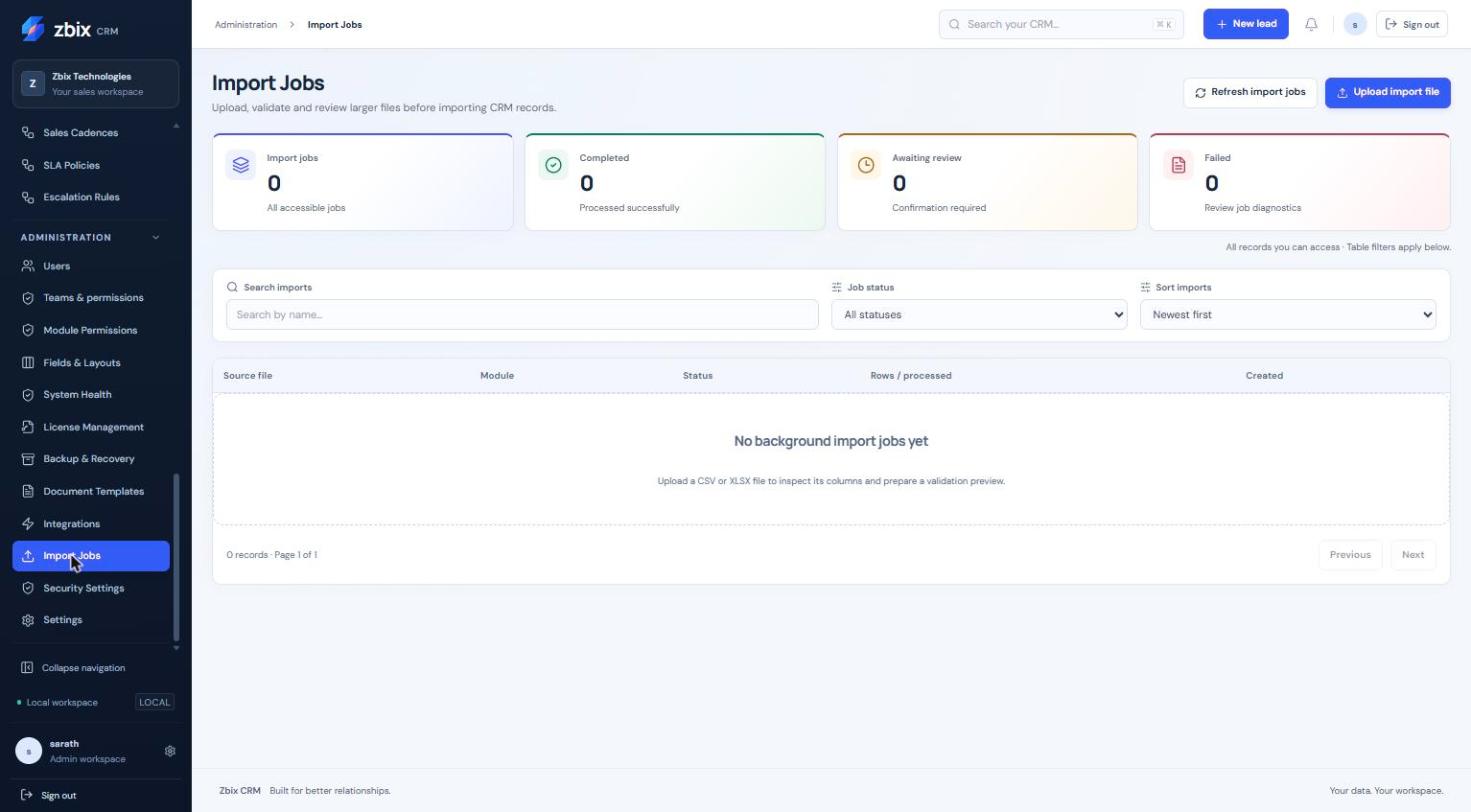
Important notes
Section titled “Important notes”-
Background imports are bounded to 10000 rows and 50 columns, with the configured upload-byte limit. The legacy synchronous import retains its smaller limit.
-
Batches can commit up to 100 rows. Cancellation stops future processing; it does not undo already committed records.
-
Changed mapping invalidates the prior preview and requires a new review.
-
Completed histories are retained; a completed job cannot simply be reset.
Troubleshooting
Section titled “Troubleshooting”-
Validation does not progress: inspect worker health.
-
Required field errors: check mapping, format and the published custom-field rules.
-
Duplicate errors: apply the approved duplicate policy or correct the source.
-
Retry risks duplicates: read prior row outcomes and committed counts before resubmitting.
Related articles
Section titled “Related articles”Search the guides or talk to the ZBIX team.


Software products, application engineering and IT services from Zbix Technologies.
Visit our company website ↗