Fields and Layouts
Overview
Section titled “Overview”Fields & Layouts extends existing CRM modules with typed custom fields and a published default form layout. Field definitions and layouts have separate version histories. Contracts and Subscriptions also appear in the module selector.
Purpose
Section titled “Purpose”Use fields to capture organization-specific information, and layouts to organize forms without changing the database schema manually.
Prerequisites
Section titled “Prerequisites”-
An administrator identity is required for the Fields & Layouts interface.
-
Decide the field’s stable API name, data type, validation and legacy-role visibility/editability before creation.
Procedure
Section titled “Procedure”-
Open Administration > Fields & Layouts and choose Module. Wait for its Field catalog and Default form layout to load.
-
Select Add custom field. Enter API name, Label and Type. Use a lower-case cf_ name, for example cf_service_region.
-
Enter Description and optional Default value. For Select or Multiselect, enter Options, one per line. Set applicable Maximum length, Decimal precision and Decimal scale.
-
Set Required, Exportable, Searchable, Filterable and Sortable as needed. Review Visible to and Editable by; selecting no roles means all otherwise permitted users.
-
Select Save field. To make it visible in a form, add it to a section in Default form layout. Use the up/down controls to reorder sections or fields, and Add section to group related information.
-
Select Preview layout. Select Save draft to retain unpublished work or Publish layout to make the layout current. Open a record form in the chosen module and check the resulting form.
-
Use History or Published history to review prior definitions. If a custom field is no longer needed, select Retire and confirm that historical values are to be preserved.
Expected result
Section titled “Expected result”The saved field is validated by the server. Published layout changes appear in record forms; unpublished layout drafts do not change the current published form.
Screenshots and diagrams
Section titled “Screenshots and diagrams”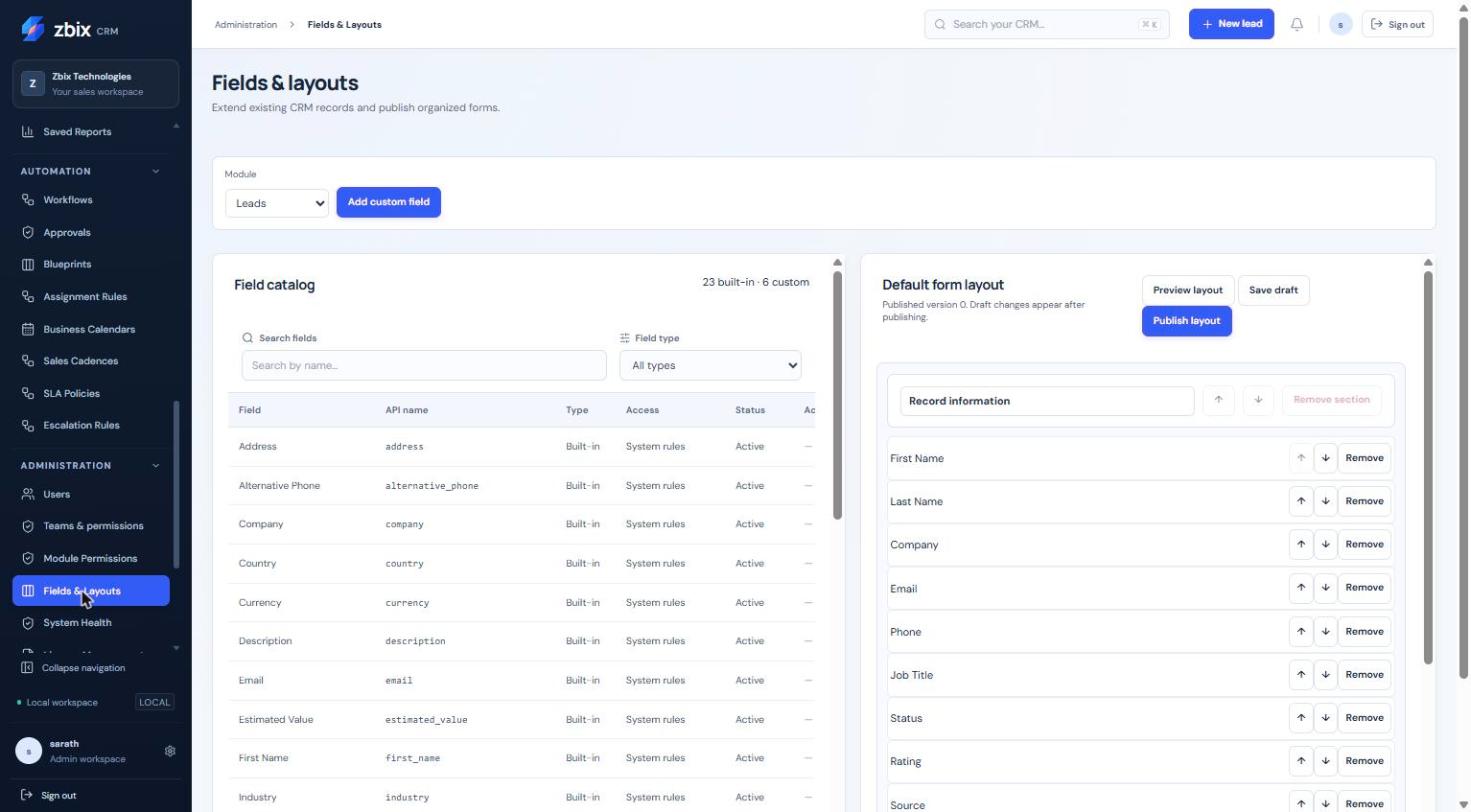
Important notes
Section titled “Important notes”-
API name and field type are immutable after creation. Labels are 1–120 characters; descriptions are at most 1,000. API names follow cf_ plus a lower-case letter, then lower-case letters, digits or underscores.
-
There are 12 types: text, multiline, integer, decimal, boolean, date, datetime, email, phone, url, select and multiselect.
-
Layout removal does not delete the field or its data. Retiring preserves historical values.
-
The source uses explicit up/down controls; it does not implement drag-and-drop layout ordering despite the earlier screenshot inventory description.
-
Per-field role restrictions use the legacy role identifiers admin, manager, sales and readonly. A custom module role does not substitute for a new field-role identifier.
Troubleshooting
Section titled “Troubleshooting”-
A field is hidden: check its active status, placement in the published layout, module permissions and field role visibility.
-
Save rejects a value: check type, allowed options, length/precision and whether a datetime contains an offset.
-
A required field blocks automation: supply a suitable default or configure the task action’s required custom-field values.
Related articles
Section titled “Related articles”Search the guides or talk to the ZBIX team.


Software products, application engineering and IT services from Zbix Technologies.
Visit our company website ↗