Analyze performance with Reports
Overview
Section titled “Overview”Reports provides scoped sales performance with date, owner, team, pipeline and stage filters. KPI cards and trend/stage charts help compare pipeline, won/lost results, conversion and overdue work.
Purpose
Section titled “Purpose”Answer a sales-performance question with consistent scope and currency definitions.
Prerequisites
Section titled “Prerequisites”-
Reporting and underlying source-module access.
-
Export permission when downloading supporting data.
Procedure
Section titled “Procedure”-
Open Insights > Reports and choose an available performance view.
-
Set the Date range or explicit UTC period, then choose owner, team, pipeline and stage as needed.
-
Select Apply filters and review the active filter count before reading results.
-
Choose the display currency and inspect each KPI, closed-won trend and pipeline-stage chart.
-
Use the related Deal or Activity views to investigate records behind the result.
-
Save a reusable definition in Saved Reports when the same question needs regular review.
Expected result
Section titled “Expected result”The report reflects current authorized records and the selected filters.
Screenshots and diagrams
Section titled “Screenshots and diagrams”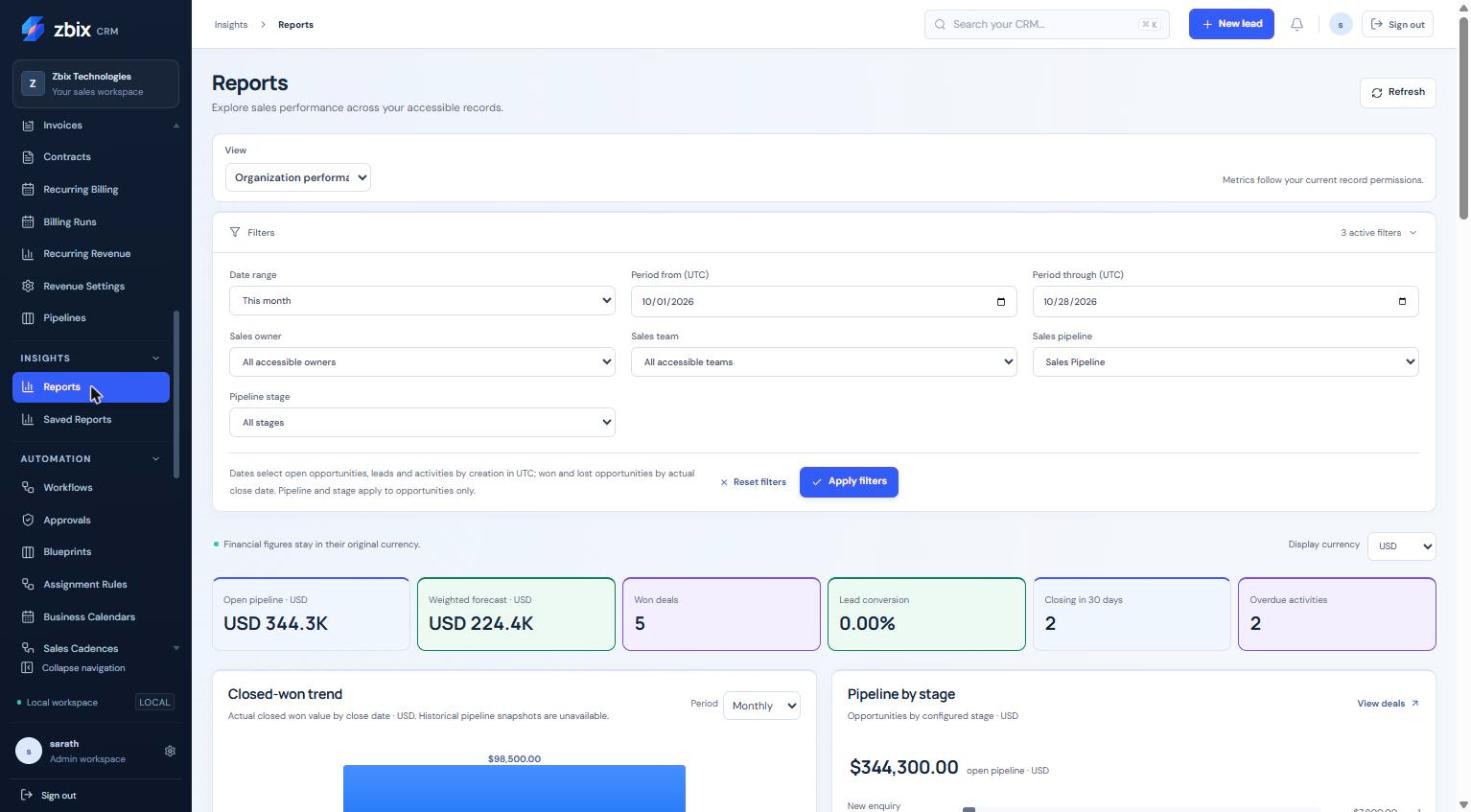
Important notes
Section titled “Important notes”-
Currencies remain separate; the report does not apply foreign-exchange rates.
-
Won/lost analysis uses actual close date while other cohorts can use creation date. Read each metric’s explanatory text.
-
Team results can overlap. Historical pipeline snapshots are not implied by a closed-won trend.
-
CSV exports reject more than 10000 matching records; narrow the query instead of expecting truncation.
Troubleshooting
Section titled “Troubleshooting”-
Report differs from a list: compare scope, dates, status, source and table filters.
-
An owner or team is unavailable: its reporting scope may not be granted.
-
An export fails: check both report/source export permissions and the matching-row limit.
Related articles
Section titled “Related articles”Search the guides or talk to the ZBIX team.


Software products, application engineering and IT services from Zbix Technologies.
Visit our company website ↗