Activate and review a self-hosted license
Overview
Section titled “Overview”License Management shows the installation’s signed entitlement, edition, validity, named-user seats and enabled capabilities. A self-hosted license is bound to the installation identity and verified with an approved public key. The publisher’s signing private key is never installed in CRM.
Purpose
Section titled “Purpose”Activate an approved license and verify that the installation has the intended commercial entitlement before customer use.
Prerequisites
Section titled “Prerequisites”-
Authorized access to Administration > License Management.
-
A self-hosted installation with approved verification trust configured by its operator.
-
A signed license issued for this installation through the approved publisher process.
Procedure
Section titled “Procedure”-
Open Administration > License Management and review Deployment, Installation identity and current license status.
-
Choose Generate Installation Request. Provide the resulting request to the authorized issuer through the agreed process. It identifies the installation; it is not an activation credential by itself.
-
After receiving the approved signed license file, select it in Signed license file and choose Verify License. Review the result before applying it.
-
Choose Upload / Apply Renewal to apply the verified license. Check the resulting edition, validity dates, licensed users, remaining seats and enabled capabilities.
-
Use Verify Installed when you need to recheck the installed entitlement. Review License history for the corresponding change.
-
If the installation must be moved or recovered, use Transfer / Recovery to load the supported instructions and follow the renewal/transfer procedure rather than editing the license file.
Expected result
Section titled “Expected result”The installation reports the intended verified license, validity, seat capacity and capabilities, with an associated history entry.
Screenshots and diagrams
Section titled “Screenshots and diagrams”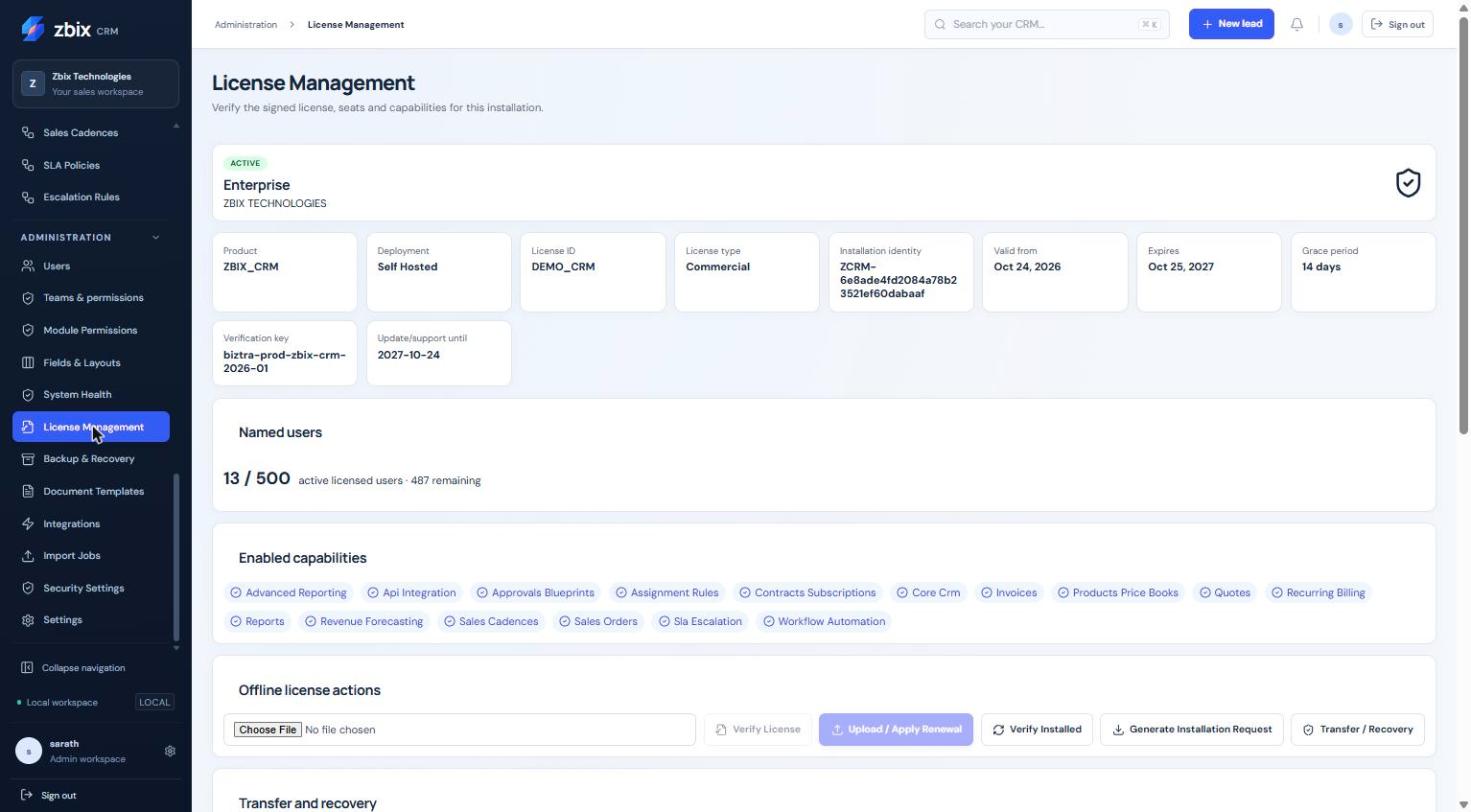
Important notes
Section titled “Important notes”-
A capability being licensed does not mean an integration is configured, authenticated or delivering successfully.
-
The installation identity is a durable database value and normally survives upgrades and database restore. It is not tied only to a MAC address or disk serial.
-
Supported edition names and capabilities should be taken from the issued entitlement and current screen; do not infer a commercial offer from demo data.
-
Backup/recovery and safe data export are recovery controls independent of commercial write entitlement.
Troubleshooting
Section titled “Troubleshooting”-
For a rejected file, confirm the intended product, installation identity, validity interval, issuer and approved verification key with the publisher. Do not alter the signed JSON.
-
If a licensed function is still unavailable, distinguish license entitlement from user permission, application configuration and provider connection.
-
Escalate using the installation request, non-secret license identity and verification result through the approved support channel. Never send signing private keys.
Related articles
Section titled “Related articles”Search the guides or talk to the ZBIX team.


Software products, application engineering and IT services from Zbix Technologies.
Visit our company website ↗