Create and send Email Activities
Overview
Section titled “Overview”Email Activities stores drafts, reusable templates, related-record associations and attempt history. SMTP and Microsoft Graph are explicit delivery choices when configured. Local mock delivery is identified as simulated.
Purpose
Section titled “Purpose”Send a reviewed message and understand the difference between a draft, a queued request and provider acceptance.
Prerequisites
Section titled “Prerequisites”-
Communication create/edit permission and access to the related CRM record.
-
An enabled SMTP configuration or your connected Graph mailbox for real sending.
-
An approved recipient and suitable attachments.
Procedure
Section titled “Procedure”-
Open Workspace > Email Activities and inspect Email provider status before composing.
-
Select Create email draft. Choose an accessible related record, recipient and optional template, then review the subject and rendered body.
-
Add permitted attachments where needed. Save email draft; saving does not send it.
-
Open the saved draft and select Send email. Choose the provider explicitly and review the recipient and any scheduled time before confirming.
-
Monitor Queued and the attempt history. Accepted means SMTP or Graph accepted the submission; verify delivery through the provider when delivery matters.
-
Use Cancel email activity only while the state allows it. Retry failed send is available for eligible definitely failed attempts; investigate an uncertain outcome first.
Expected result
Section titled “Expected result”The draft remains traceable to the CRM record, and sending produces durable status and attempt history.
Screenshots and diagrams
Section titled “Screenshots and diagrams”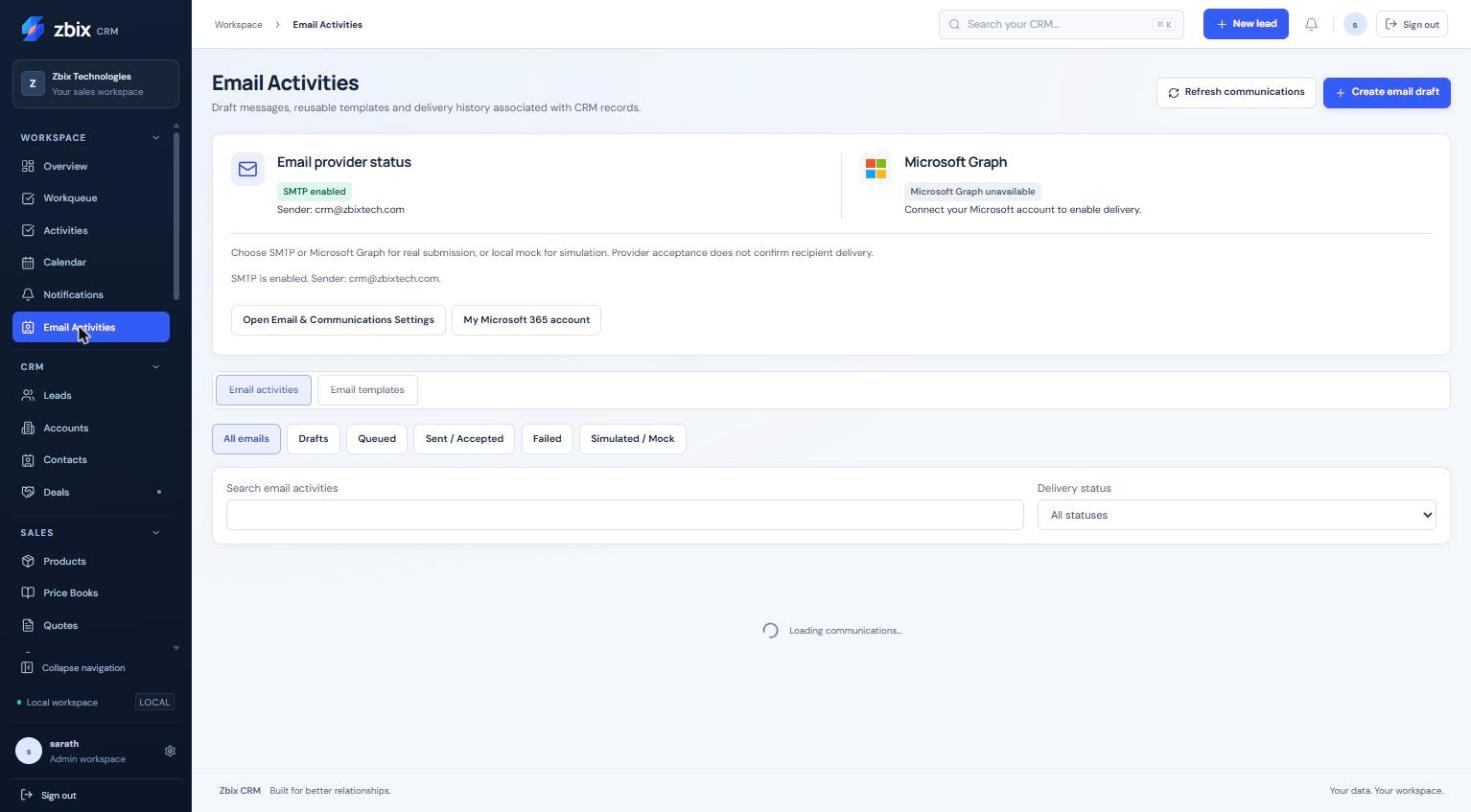
Important notes
Section titled “Important notes”-
Changing a Quote to Sent does not send that Quote by email. Use an explicit communication action.
-
A simulated/mock status records local processing only.
-
Graph requires the sender to match the connected mailbox and recipient to match the related CRM record. Provider acceptance is not proof of inbox delivery.
-
The supplied screenshot shows the provider panel but its message table is still loading; it illustrates provider controls only.
Troubleshooting
Section titled “Troubleshooting”-
SMTP disabled: ask the administrator to configure and test the provider.
-
Graph unavailable: connect the personal Microsoft account with the required scope.
-
Failed with uncertain outcome: inspect provider evidence before retrying to avoid duplicate messages.
Related articles
Section titled “Related articles”Search the guides or talk to the ZBIX team.


Software products, application engineering and IT services from Zbix Technologies.
Visit our company website ↗