Manage Deals and pipeline stages
Overview
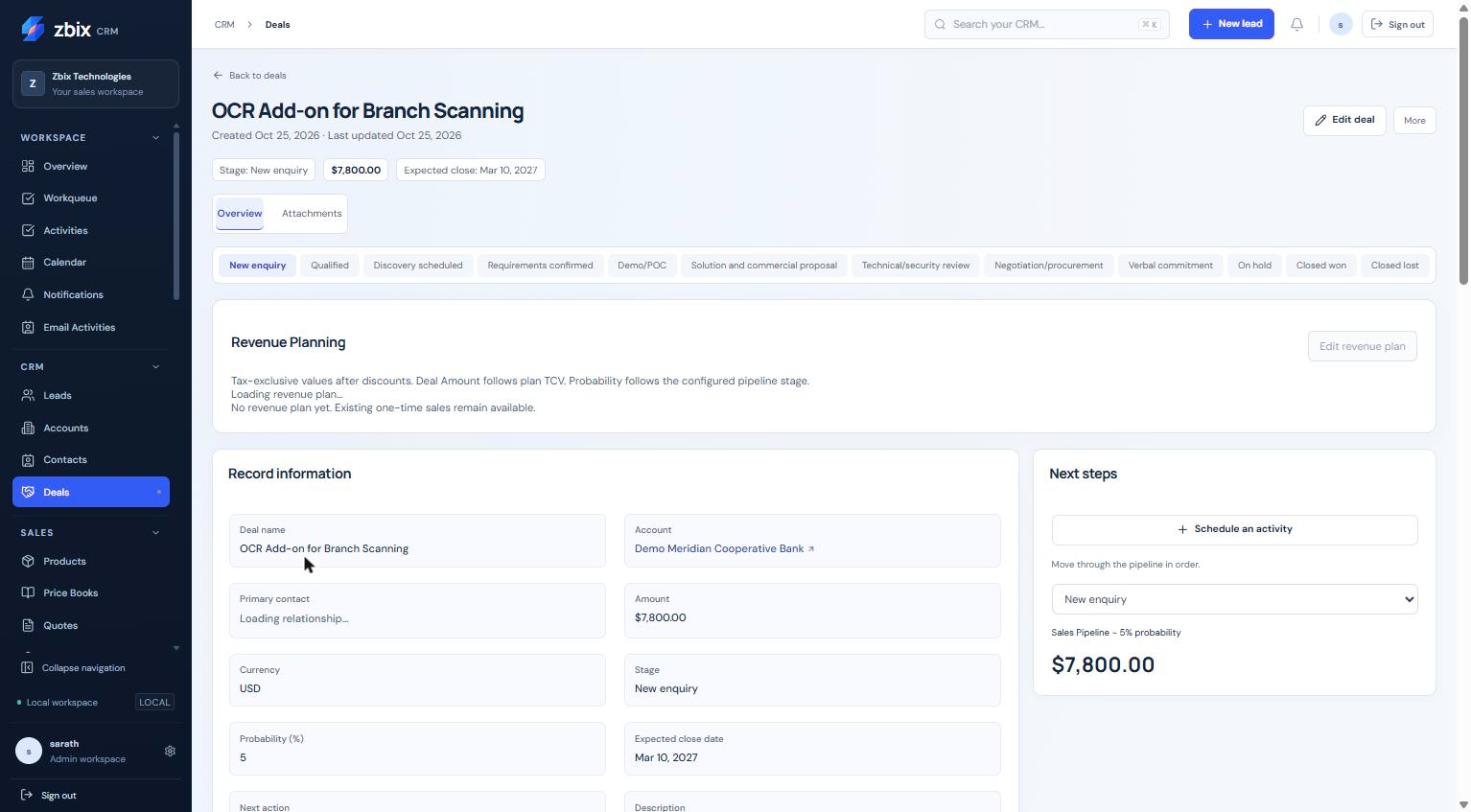
Section titled “Overview”Deals represent revenue opportunities. The module provides a pipeline board and a table view, while the detail page shows current stage, amount, expected close date and available next actions. Revenue plans and guided processes may add controls.
Purpose
Section titled “Purpose”Keep opportunity value and stage aligned with actual sales progress.
Prerequisites
Section titled “Prerequisites”-
Deal view/create/edit access.
-
Accessible Account and primary Contact where used.
-
The active pipeline and its configured stage requirements.
Procedure
Section titled “Procedure”-
Open CRM > Deals. Select a pipeline and use Board or Table to review opportunities.
-
Select Create deal and enter Deal name and Amount. Choose the currency, Account, primary Contact and expected close date.
-
Select the permitted pipeline and initial stage. Complete any stage-required fields and save.
-
Open the Deal and use the stage control or available board action to propose a new stage.
-
Complete the required data or guided business-process transition. Record a won/lost reason when required by the configured stage.
-
Review stage history and the updated probability. If a revenue plan is attached, review that plan before trying to change the Deal amount.
Expected result
Section titled “Expected result”The Deal moves through a validated pipeline and retains stage history.
Screenshots and diagrams
Section titled “Screenshots and diagrams”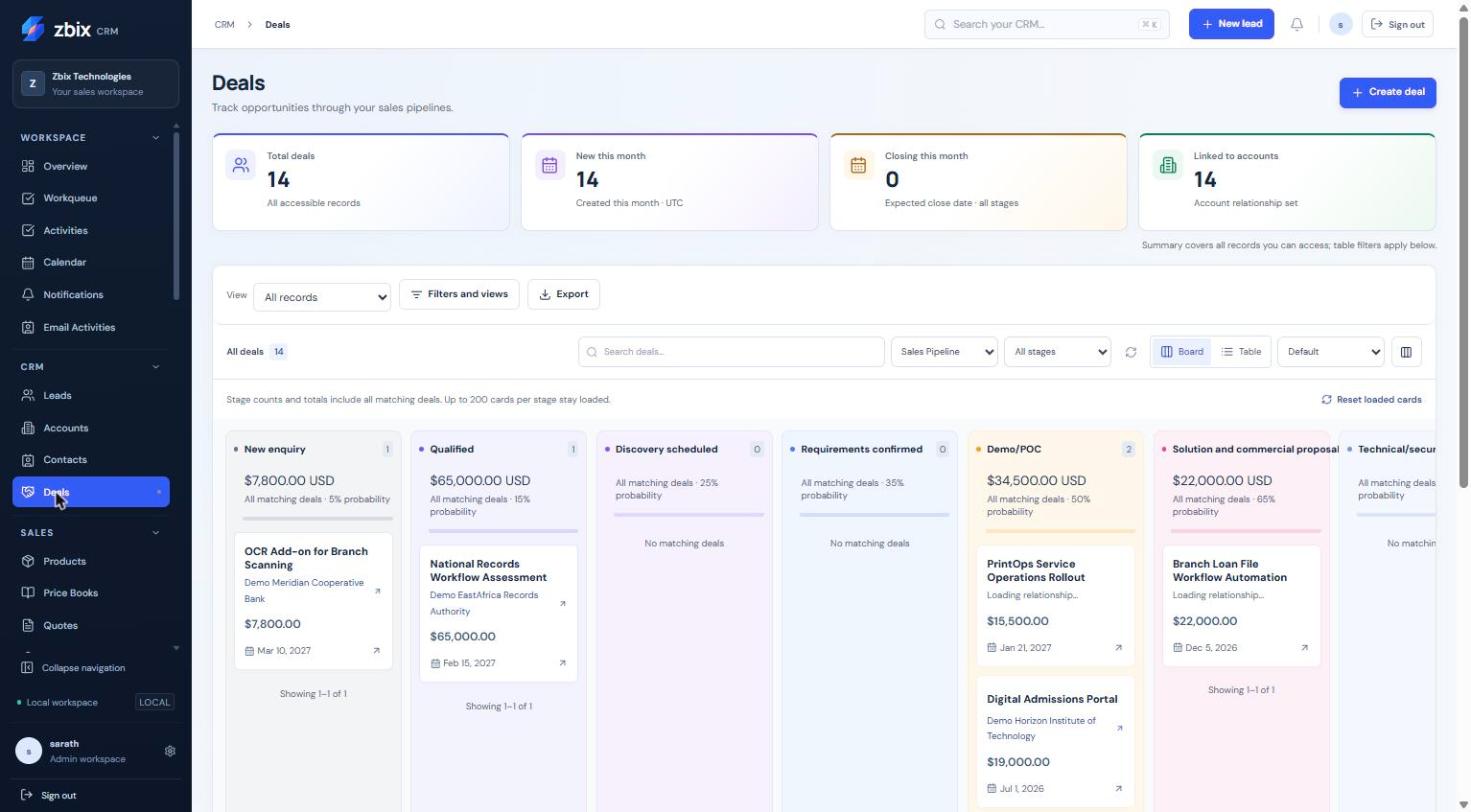
Important notes
Section titled “Important notes”-
Stage labels and probabilities are organization configuration. The 12-stage demonstration pipeline is not a mandatory default.
-
The standard currency selector and screenshot catalog currencies can differ; do not assume an automatic conversion between currencies.
-
Board counts include matching Deals beyond the currently loaded cards. Refresh after concurrent changes.
Troubleshooting
Section titled “Troubleshooting”-
Stage change rejected: complete the configured required fields, allowed transition or Blueprint action.
-
Contact mismatch: select a Contact from the Deal’s Account.
-
Amount cannot be edited as expected: inspect whether the revenue plan is authoritative.
-
A card is missing: verify pipeline, stage, filters and loaded-card limits.
Related articles
Section titled “Related articles”Search the guides or talk to the ZBIX team.


Software products, application engineering and IT services from Zbix Technologies.
Visit our company website ↗